


TECOBI Notifications & Alerts
Know when the next conversation needs you.
Keep useful customer activity in view with separate notification preferences for new leads, new messages, watched videos, tags and reports. Choose the alerts that fit how you work, then use your phone’s notification settings when you want push alerts on the go. Managers with report access can also use Notification Activity to spot aging inbox items and review team follow-through.
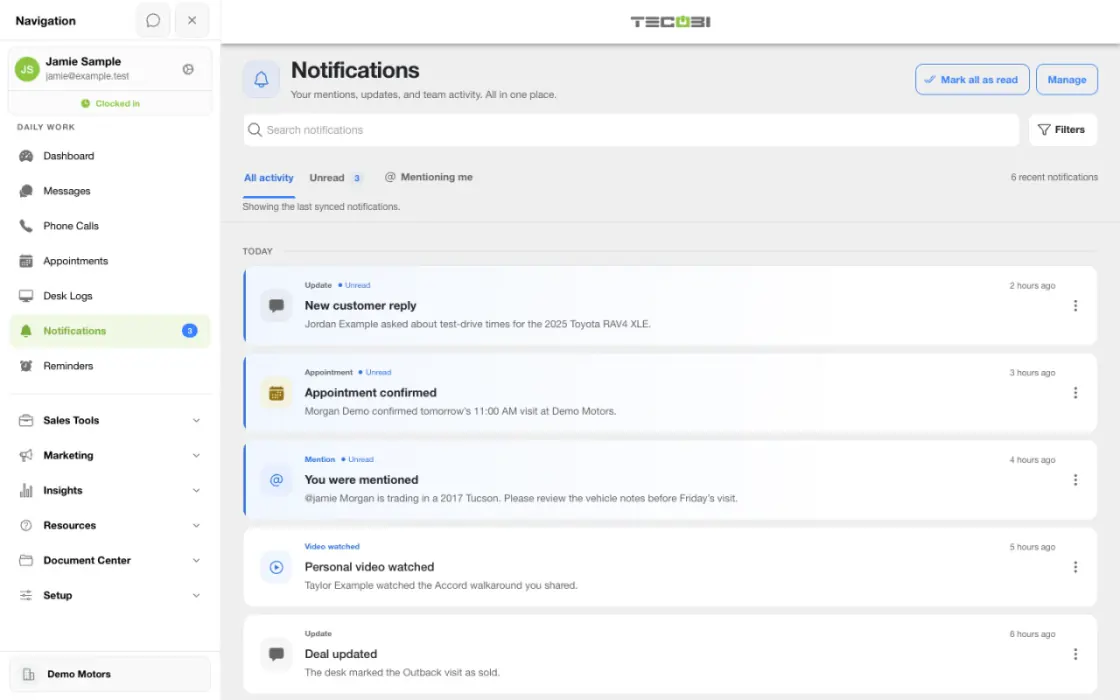
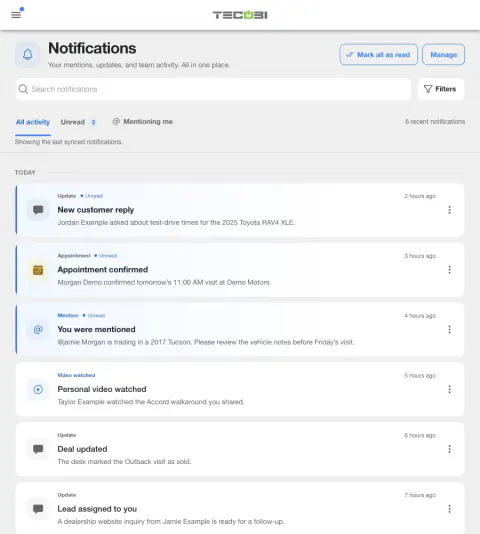
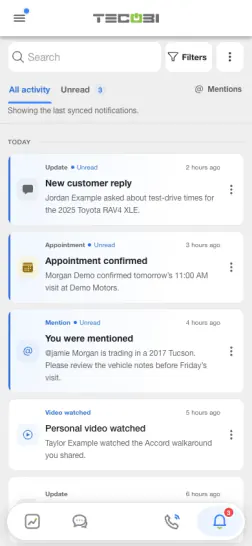
Get the update that needs your attention
A lead replies while a teammate is away from their desk. Review how they get notified and where the update opens.
- Choose the alertReview the notification options that fit the person’s role and workflow.
- Check deliveryConfirm the device is set up for the supported notification method.
- Open the relevant itemFollow the alert to the conversation, appointment or team activity it refers to.
What it helps you do
Choose alerts by activity.
New Lead, New Message, Video Watched, Tags, Daily Reports and Monthly Reports have separate preferences.
Choose how you receive them.
Use the displayed None, Email, Push or Both options for the alert type you want to change.
Find the next useful check.
When phone alerts are missing, review both your TECOBI preferences and the phone’s notification access. Supported app builds provide a Push on this phone status to help explain the next step.
Notice inbox work that is getting older.
Notification Activity shows the selected team’s current unread items and age groups alongside activity for chosen dates. Use it to identify where to check in with the team, then review the customer work through your normal access.
How it works
Open your notification preferences.
In Settings, find Notification preferences and choose the alert type you want to review.
Set the delivery option.
Choose None, Email, Push or Both as displayed. Review New Message and Video Watched separately when you want different alerts for conversations and video engagement.
Check phone access when using push.
On supported native app builds, review Push on this phone. If permission is requested, use Allow push notifications and respond to the phone prompt. If access is blocked, review TECOBI notifications in the phone’s settings.
Follow the available device guidance.
Use Open phone notification settings where available. On Android, review notification categories if the app reports blocked categories. If the status cannot be checked, retry or review phone settings directly.
Review team inbox activity.
With dealership report access, open Reports → Notification Activity. Choose activity dates and team filters; include inactive users when needed. Review Current backlog separately from the selected-period activity. Open a count for notification state details or export the filtered report to CSV. Search, sorting and the aged-unread view affect the on-screen table; CSV includes the report’s selected users.
Setup and availability
Preferences apply to the signed-in user. Alert availability also follows account access and the underlying activity.
Native phone status and settings controls vary by app build, device and operating system. Check the controls actually shown on your device.
Questions dealers ask
Can I receive both email and push notifications?
Choose Both for the relevant alert type where that option appears.
Can video alerts be different from message alerts?
Yes. Video Watched and New Message have separate controls under Notification preferences.
Does allowing notifications on my phone enable every alert?
Phone permission and your TECOBI preferences both matter. Check the alert type you want to receive, then review the phone’s permission and connection.
Why is the phone settings button missing?
Phone-specific status and settings controls depend on the installed native app build and device. A web browser may not show them. You can review TECOBI notification access directly in your phone’s settings.
What should I include when asking support about a missing alert?
Describe the alert type, the approximate time, your device and app version, and whether the issue affects email, push or both. Keep passwords, verification codes and private customer conversations out of this website chat.
Does Notification Sound change which alerts I receive?
Notification Sound is a separate setting. Use each alert type’s delivery preference to choose Email, Push, Both or None.
In Notification Activity, what does marked read mean? Does it prove follow-up?
Marked read means a read timestamp was recorded during the chosen period. Opening a related conversation or using Mark all read can update several notifications together. It does not prove each item was individually read or that a customer was contacted. Last marked read is the latest stored read timestamp for that dealership, not the user’s last inbox visit.
Why does Current backlog include notifications outside my selected dates?
Current backlog covers unread, unremoved inbox items from all dates at the report’s snapshot time. Age starts when each item was created in the inbox. Selected-period activity uses dealership-local dates and each event’s timestamp, so a read or removal can involve an older notification. Choosing a past period does not turn the backlog into a historical end-of-day balance.
What do Created in inbox and Removed without marked-read measure?
Created in inbox counts notification records created during the period; it does not confirm a phone received a push. Removed without marked-read counts removals during the period with no stored read timestamp. Removal is not proof of follow-up, and recorded states can change; this report is not an immutable audit trail.
Can Notification Activity reveal another employee’s private reminder or customer message?
The report requires membership in the dealership and report access. Its notification drill-down shows state and timestamps, not private reminder text or customer messages. Report access does not expand your access to customer conversations. Include inactive users can bring relevant historical users into the report; a missing row is not necessarily zero activity.
ASK ME ABOUT IT
BETTER TOGETHER
Connect the next step.
Explore how these TECOBI solutions fit into your dealership’s workflow.