



Appointment Scheduling
Make the visit an easy next step when the customer is ready.
Customers should not have to repeat the whole conversation just to arrange a visit. TECOBI connects self-scheduling with the customer’s Digital Retail experience and lead record. The dealership sets up its available booking options, the shopper chooses a suitable time, and the team can manage the appointment and follow-up with the existing conversation in view.
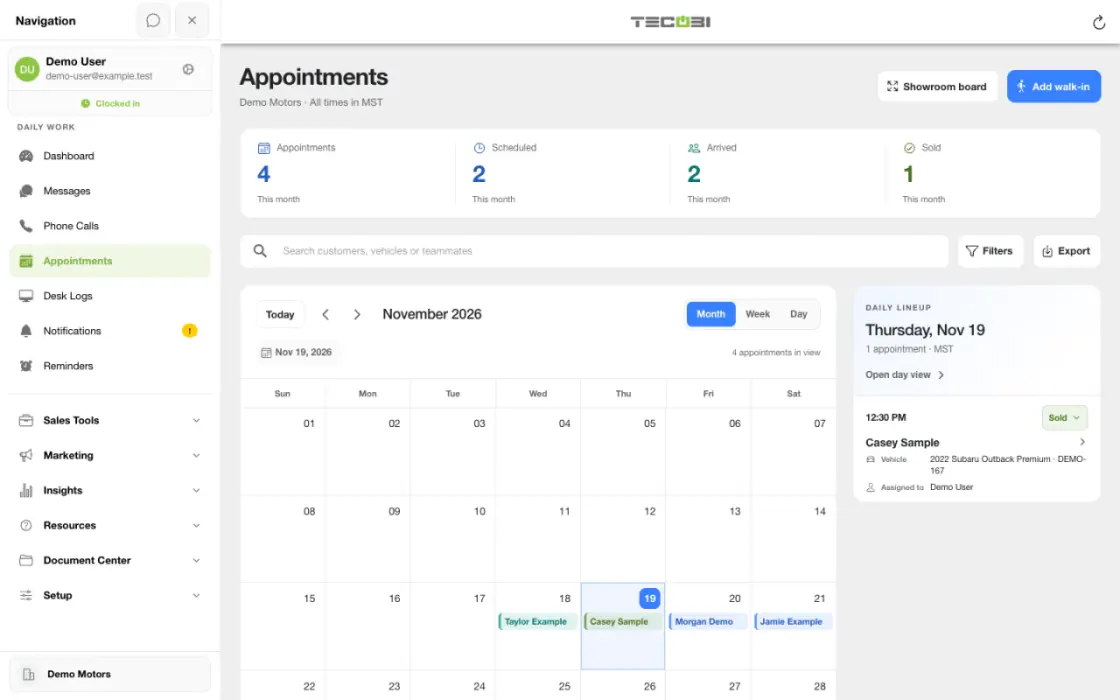
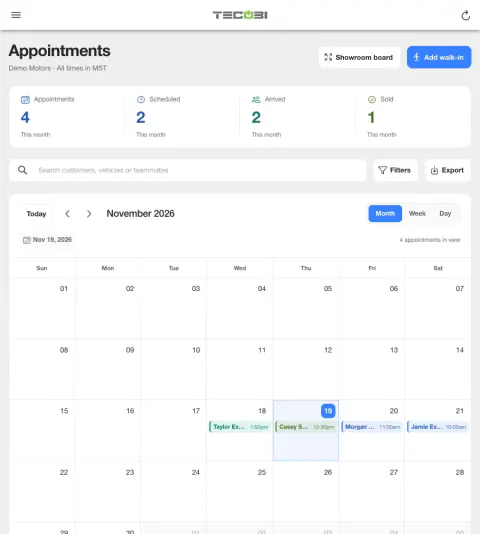
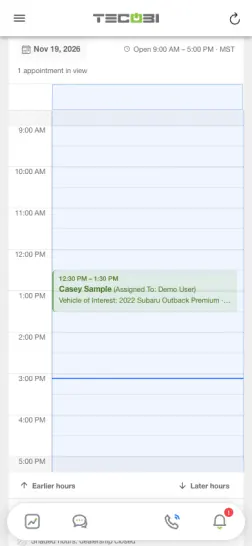
Take a test-drive request through the visit
A conversation becomes easier to work when the agreed time, customer and vehicle are recorded together.
- Offer a timeShare the supported scheduling option or record an agreed appointment in TECOBI.
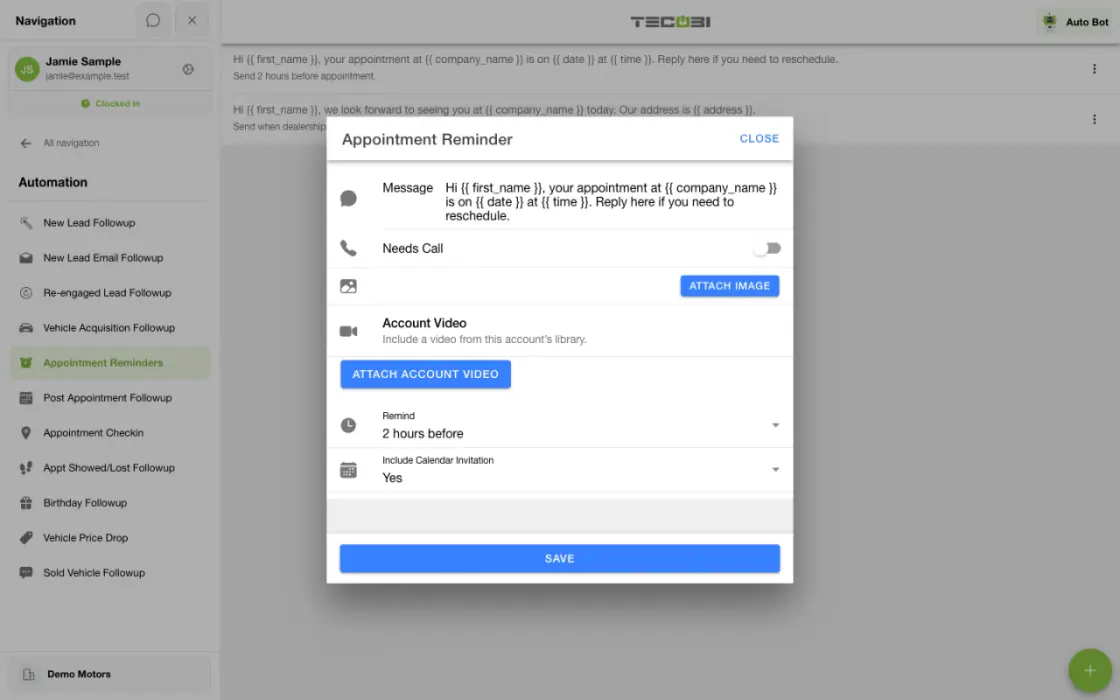
- Help the shopper prepareUse the configured confirmation or reminder and answer questions in the conversation.
- Record the outcomeMark the result after the visit and use that context for the next follow-up.
What it helps you do
Give customers a convenient way to choose a time.
A supported booking link lets the shopper see the configured options and choose a visit without another round of phone tag.
Keep the appointment with the customer story.
The appointment is connected to the lead record, so the next conversation can build on the vehicle questions, information and follow-up that came before it.
Stay connected after the appointment is set.
Supported reminders, rescheduling, cancellation and outcome reporting help the team manage what happens next. A booked appointment is the start of the visit workflow.
Let shoppers choose a time with your store.
An enabled store booking link gives customers a place to choose a configured appointment type and available time. Your team controls the event’s assignment rules so the visit can fit the dealership’s process.
Help the team prepare for the visit.
Use the Showroom Appointment Board to review today’s in-store appointments, and offer customers the supported appointment check-in page. Connect the planned visit with the team’s recorded arrival and follow-through.
How it works
Set up the right booking options.
Configure the available event types, working availability and applicable buffers or connected-calendar checks. Choose the customer-facing booking options that fit the dealership’s workflow.
Continue from the appointment record.
Use the connected appointment to manage the visit and follow-up. Where available, customers can see details, reschedule, cancel or add the appointment to their calendar; staff can track the recorded appointment outcome.
Setup and availability
Booking options depend on configured event types, availability, the calendar connection and the customer’s access.
Calendar-aware scheduling depends on the available calendar data and does not guarantee every conflict is detected.
Reminders and recorded appointment statuses do not guarantee message delivery, attendance or a sale.
The product image shows the customer’s booking entry point with no upcoming appointments, not a confirmed booking or a calendar availability screen.
Store booking, event assignment and capacity enforcement require their own configuration and eligible calendar connections. Check-in and board status are recorded workflow information, not independent proof of physical arrival or a sale.
Customer story · Thunder Chrysler Dodge Jeep Ram
Thunder Chrysler Dodge Jeep Ram generated 700+ appointments with TECOBI
Thunder Chrysler Dodge Jeep Ram imported 47,000+ historical leads into TECOBI and used automated follow-up plus human handoff to generate over 700 appointments in about six months.
Questions dealers ask
Can a customer book without calling the dealership?
Yes. Supported self-scheduling links and Digital Retail booking options let customers select from the configured appointment choices without first making a phone call.
Does scheduling consider the salesperson’s calendar?
Supported scheduling workflows use configured availability and connected-calendar conflict checks. Those checks depend on the calendar connection and booking setup; they are not a guarantee that every external calendar conflict will be detected.
Can a customer change an appointment?
The supported customer appointment experience includes reschedule, cancel and add-to-calendar actions when available for that appointment and customer link. The customer can return to that experience to see the relevant options.
Are appointment reminders available?
TECOBI supports appointment reminder and follow-up workflows. The messages and timing depend on the configured workflow, customer contact information and communication eligibility. A reminder being configured does not guarantee delivery or attendance.
Can managers distinguish appointments set from appointments that show?
Yes. Appointment and activity reporting includes distinct recorded stages such as set, cancelled, shown and sold. Use the appropriate report and date range, and keep outcomes updated so those stages remain meaningful.
What should I check if a customer sees no appointment times?
Check that the intended event type is available to that customer and that working hours, date range, buffers and any calendar connection are configured correctly. Confirm the appointment time zone before making changes. TECOBI support can help review a booking issue; describe the problem without posting a customer’s secure link in the public website chat.
Can customers book with the dealership instead of a particular salesperson?
Yes. When Store Appointment Scheduling is enabled, the dealership can share its public store calendar link. Customers choose from the configured event types and available times. An authorized administrator controls the setup; a saved calendar URL alone does not mean public booking is enabled.
Who receives an appointment booked through the store calendar?
Each store event type has an assignment setting. It can use the store’s delivery rules, a specific active salesperson, round robin, first come or manual assignment. Eligibility and connected-calendar availability affect the supported options. Review the event type and the dealership’s delivery setup instead of assuming every booking is assigned to the same person.
Can we limit how many appointments the store accepts at the same time?
Store Appointment Scheduling supports shared appointment capacity with optional enforcement. Overbooking is allowed by default; setting a capacity number alone does not turn enforcement on. Before enabling enforcement, every active non-TECOBI-staff user in the store must connect a Google Calendar and select a destination calendar. Salesperson calendar conflicts still apply to the supported scheduling workflow.
Can customers check in for their appointment?
Yes. A supported appointment check-in link shows the customer their appointment details and a Check in action while it is active. After that action succeeds, the page confirms check-in and TECOBI records the appointment as showed. This records the customer’s action; staff should confirm the visit and keep the eventual outcome accurate. Manager alerts depend on separate dealership settings.
What if a customer’s check-in link is no longer active?
A cancelled, missed or expired appointment can make the check-in action unavailable. The page shows the applicable state and offers a rescheduling path when available; an appointment already checked in shows confirmation. Have the customer contact the dealership if the appointment details or status are wrong. Do not use another customer’s link or post a private appointment link in this website chat.
What does the Showroom Appointment Board show?
It organizes today’s in-store appointments into Upcoming Today and Past Today using dealership time and the user’s permitted appointment scope. The board displays a first name and last initial when available; vehicle, salesperson and status display options depend on the store’s settings. Past Today includes appointments whose scheduled time has passed the board’s buffer as well as recorded outcomes, so placement there does not by itself mean the customer arrived or bought a vehicle.
ASK ME ABOUT IT
BETTER TOGETHER
Connect the next step.
Explore how these TECOBI solutions fit into your dealership’s workflow.