



Facebook Marketplace Assistant
Make the next Marketplace listing easier.
Your team already has vehicle details and photos in TECOBI. Marketplace Assistant helps a salesperson prepare an individual Facebook Marketplace vehicle listing from that inventory, then review and publish it using their own Facebook profile.
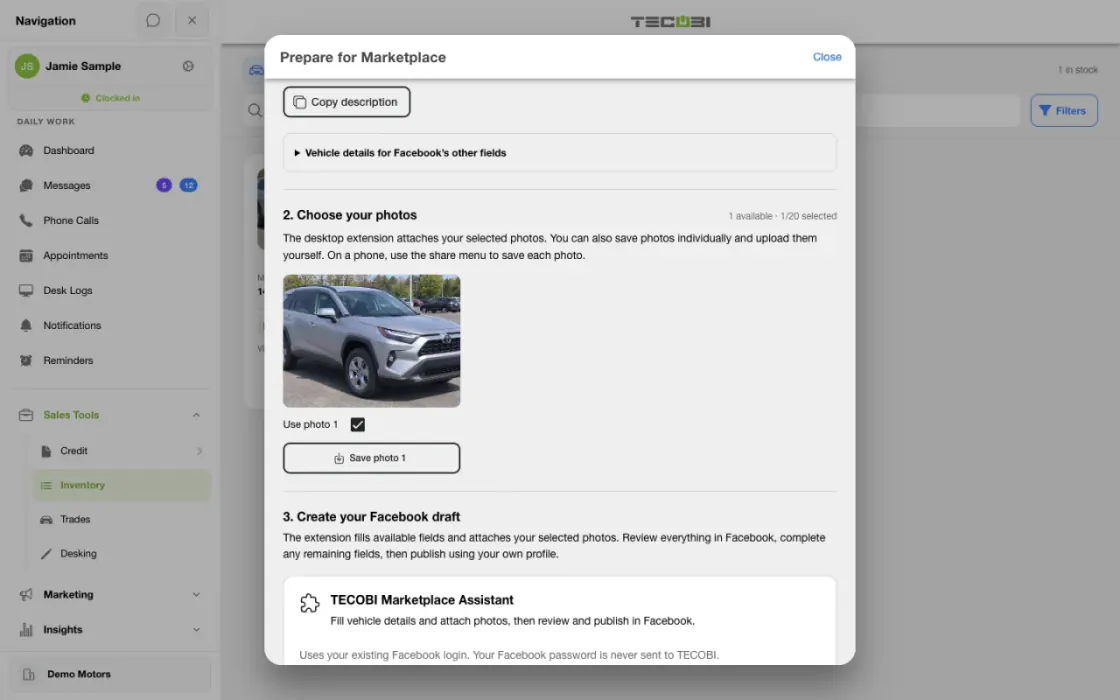
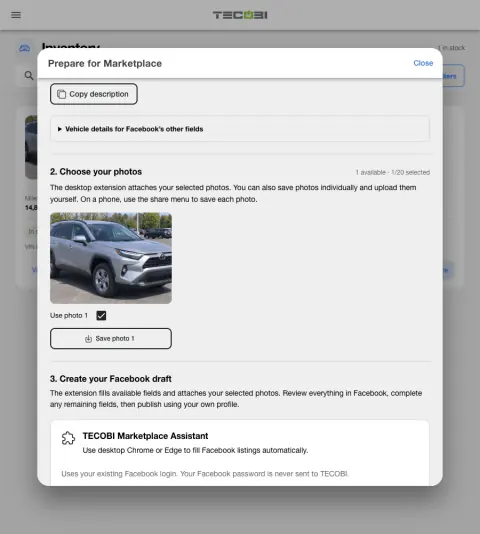
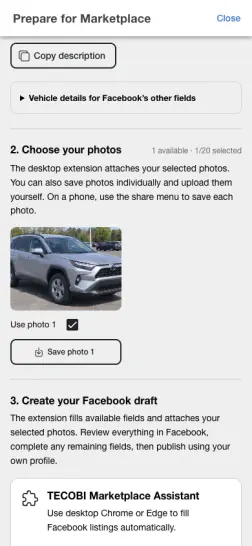
Prepare one vehicle listing before opening Marketplace
Start with the vehicle that has accurate inventory details and a usable photo set.
- Confirm the vehicleReview the stock record, listing details and photos.
- Prepare the listingUse the extension’s supported workflow to carry the reviewed information into Marketplace.
- Check what publishedConfirm the listing on Marketplace and review the dealership’s follow-up process.
Start with the inventory you already have
Give your salesperson a head start on an individual listing.
- The preparation screen brings together the available vehicle facts, selling price, listing text and inventory photos. The salesperson can edit the title and description and choose up to 20 photos for the desktop extension.
- Before opening the Facebook form, TECOBI checks whether the vehicle is still in stock and whether its recorded selling price changed. Reopen the vehicle to review changes if needed.
- Where the dealership and salesperson have the required public profile details, the prepared description can include a public vehicle link. It is not a customer’s private shopping link.
Keep the salesperson in control
The extension assists with the form; your team finishes the listing in Facebook.
- The extension opens Facebook’s vehicle listing form and offers a Fill vehicle listing action. It fills supported empty fields and hands selected photos to Facebook’s uploader.
- Review the vehicle identity, price, photos and every other field. Facebook may require details that are missing or unsupported, and a photo handoff is not proof that its upload completed.
- The extension does not click Next, Save draft, Publish or Boost. The salesperson makes the final publishing decision and handles buyer messages, price changes and sold status in Facebook.
Built for a practical dealership workflow
Prepare one vehicle at a time using your team’s own Facebook profile.
- On a supported desktop browser, open Marketplace extension in TECOBI Inventory and use the available Install extension link. Return to Inventory and check that the extension is detected before preparing a listing.
- The Marketplace Assistant is a desktop browser extension. Mobile users can prepare and copy listing text, save vehicle photos and complete the listing manually in Facebook.
- Facebook’s form, account permissions and available inventory data can affect what is filled. If a field or photo needs attention, complete it manually and review the result before publishing.
- The related inventory screenshot below shows TECOBI’s customer shopping experience; it is not the Marketplace Assistant or Facebook form.
Put the workflow into practice.
In TECOBI Inventory, choose an in-stock vehicle and open Post to Marketplace.
Review or edit the prepared listing title and description, and select the vehicle photos you want to use.
With the desktop extension installed, create the listing to open Facebook’s vehicle form. Choose Fill vehicle listing in the TECOBI panel.
Check the vehicle details and photo previews, complete any missing information, and publish the listing yourself in Facebook.
Connected TECOBI tools
Questions dealers ask
Does TECOBI automatically publish Marketplace listings?
No. The salesperson reviews the Facebook form, completes any remaining details and chooses whether to publish using their own profile.
Can the extension fill every Facebook field and upload every photo?
It attempts supported empty fields and selected photos. Fields and photo uploads must be reviewed, and items Facebook does not accept can require manual completion.
Does it sync Marketplace messages or automatically remove sold vehicles?
No. Buyer messages, price changes and sold status are managed in Facebook.
Can I use it on my phone?
The extension is for desktop browsers. On mobile, the preparation workflow provides text and photos to use when completing the listing manually.
Setup and availability
Inventory & Customer Shopping: setup and availability
Inventory and favorites depend on the dealership’s configuration and the type of customer link.
Listing details come from connected data; a displayed price or in-stock status is not a guarantee of a current offer or physical availability.
The product image is a captured example of inventory cards and favorite controls. Its vehicles, prices and stock numbers are not current offers.
ASK ME ABOUT IT