



Dealership Lead Routing & BDC Assignments
Put the right person behind the next conversation.
A customer should not have to wonder who is helping them. TECOBI keeps BDC and salesperson assignments separate and lets an authorized manager route matching new leads by source and role. Your team can review ownership on the customer record and continue the same conversation with a clear next step.
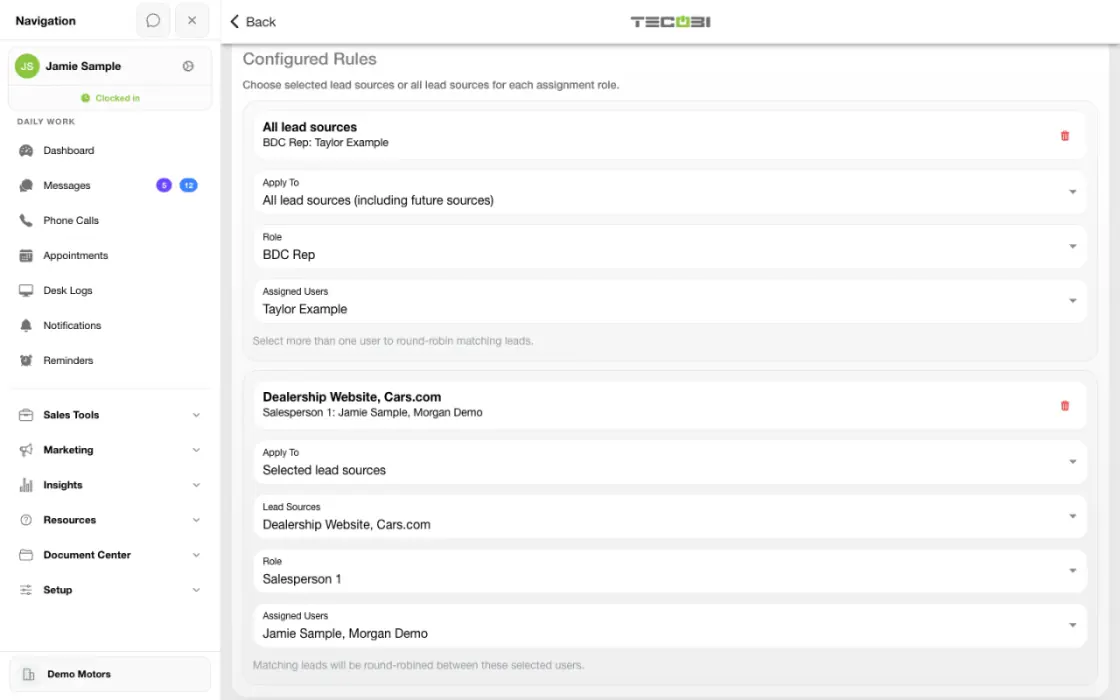
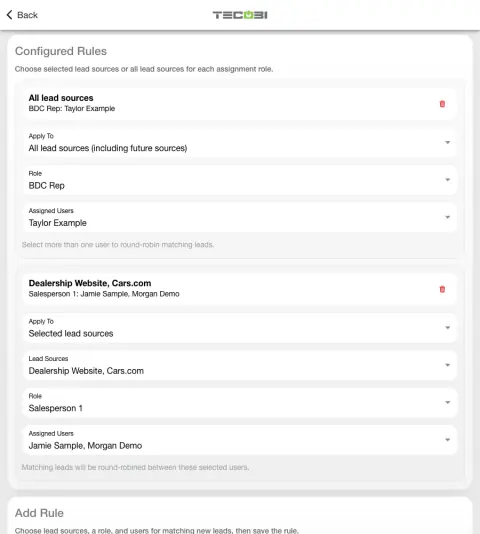
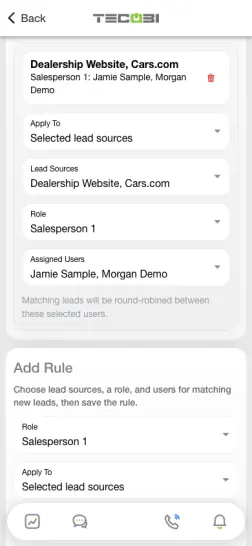
Route a new inquiry and preserve existing ownership
A new internet inquiry and a reply from an existing customer are different events. Review ownership before changing who gets the next task.
- Choose the inbound sourceStart with the intended dealership and the lead source you want to configure.
- Set the receiving teamReview the salesperson and BDC assignments that apply for that source.
- Confirm the lead ownerOpen an available example and check the assigned team before changing routing rules.
What it helps you do
Give the BDC its own role.
BDC Rep, Salesperson 1, Salesperson 2 and Sales Manager are separate assignment roles. A BDC teammate can support the opportunity without replacing its salesperson.
Match the source with the right team.
Choose selected lead sources or all lead sources, then select an assignment role and the employees who should receive matching new leads.
How it works
Start in the right dealership.
Open Client Settings, then Lead Source Assignments. Confirm the dealership and the role you want to assign before changing a rule.
Choose the source and people.
Under Add Rule, choose Salesperson 1, Salesperson 2, BDC Rep or Sales Manager. In Apply To, choose selected lead sources or all lead sources, then choose the intended employees and Save Rule.
Keep current ownership in view.
A matching source rule fills an empty role; it does not replace a person already assigned to that role. Review Assignees on the customer record if ownership differs from what you expected.
Assign a BDC teammate to an existing customer.
Open the customer’s Assignees section and choose the intended employee in BDC Rep. Review Salesperson 1 and 2 separately so the opportunity keeps the intended ownership.
Setup and availability
Lead routing and reassignment controls depend on dealership access, configuration and user permissions.
The source rule fills only the matching empty assignment role; selected employees must remain eligible members of the dealership.
Questions dealers ask
Is BDC Rep the same as Salesperson 2?
No. BDC Rep, Salesperson 1 and Salesperson 2 are separate fields on the opportunity.
Will a source rule replace someone already assigned?
No. The assignment logic fills an empty matching role and skips a role that already has a person assigned.
What happens when a rule includes several employees?
Matching leads rotate among the employees selected for that rule.
Does one source rule change every lead’s assignment?
A rule applies to its selected sources, or to all sources when that option is chosen. New leads without a matching rule keep the dealership’s existing first-come, manual or round-robin behavior.
Why did a lead not get the employee I expected?
Compare the lead source, the rule’s scope and role, and the customer’s current Assignees. A source-specific rule takes priority over an all-source rule for the same role. Confirm selected employees are active dealership members; ask support to review anything still unclear.
Who can configure lead source assignments?
Account administrators and users with the applicable account-settings permission can manage source rules. Changing an individual lead’s Assignees uses the separate reassignment permission.
Why can’t I change the BDC Rep on a customer?
Check your reassignment permission with your administrator. Assignment controls can also be unavailable for a closed store transfer.
Can one rule cover several lead sources?
Yes. Choose Selected lead sources under Apply To and select the sources that should share the same role and employee group.
Can a rule include new lead sources automatically?
Choose All lead sources (including future sources) to cover current and future sources for that role.
What if both a source-specific and an all-source rule match?
A source-specific rule takes priority over an all-source rule for the same assignment role.
ASK ME ABOUT IT
BETTER TOGETHER
Connect the next step.
Explore how these TECOBI solutions fit into your dealership’s workflow.