



Clocking in and out
Keep your TECOBI availability up to date.
Your dealership may use TECOBI clock status when deciding who is available for new leads. Check your status and follow your manager’s process.
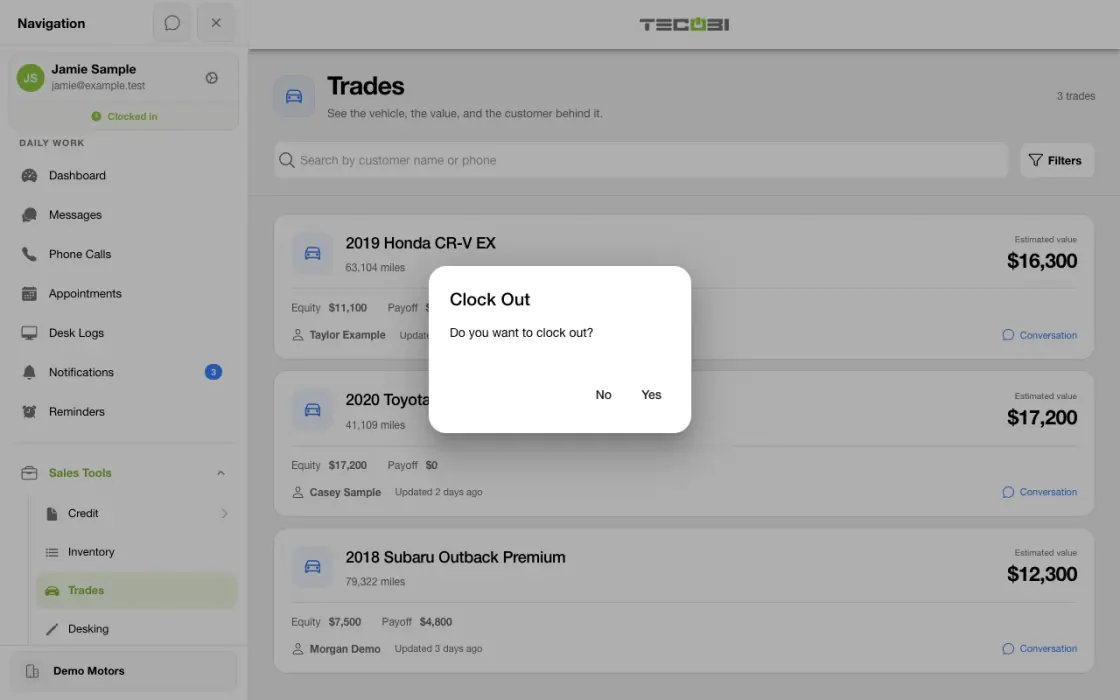
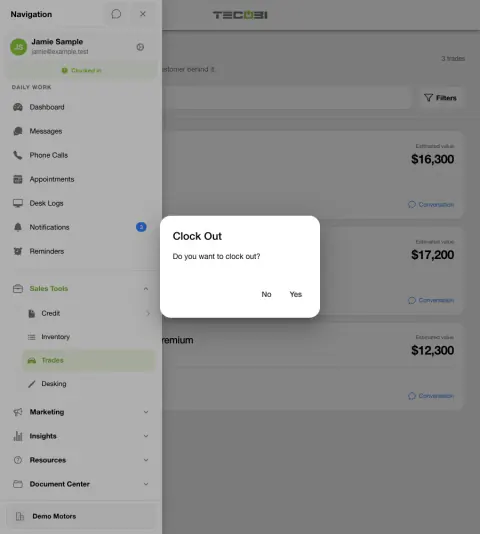
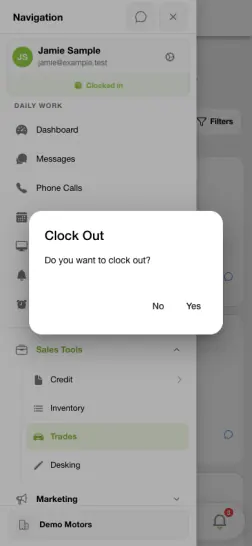
Hand off open work before clocking out
At the end of a shift, check the active work and confirm your clock status from the staff menu.
- Review open tasksFinish the needed follow-up or agree who will cover it.
- Open clock statusCheck the active dealership and current status.
- Confirm the changeReview the clock-out confirmation before ending the shift.
Know when your team is available
The clock control lets a user update their current TECOBI status.
- The menu shows whether you are Clocked in or Clocked out. Selecting the label starts a change; the confirmation is a separate step.
- After confirming, check the status shown in the app. If the change fails or the control is unavailable, ask your dealership administrator for help.
- Follow your dealership’s instructions for when to clock in and out. Do not assume the status badge is a payroll record.
Understand the lead-routing connection
Clock status is one possible part of dealership routing, alongside other settings.
- A dealership can configure whether round-robin routing considers clock status. Eligible users must also meet the applicable dealership and routing settings.
- If an inactivity timeout is configured, the workflow can clock out eligible inactive users. Leaving the app open alone does not guarantee that you stay clocked in.
- A clocked-in status does not guarantee that a particular lead will be assigned to you. Ask an administrator to review the relevant routing setup.
Check the team view
Authorized team members can use reporting to see more context.
- The Team Activity report can display a clocked-in or clocked-out badge for a representative when the user has access to the report.
- A clocked-in time total for a selected date range is separate from the current status badge. Review the report’s date range and permissions.
- For account-specific problems, share the affected user and issue with TECOBI Support without sending a password or verification code.
Put the workflow into practice.
Open the TECOBI menu and find your clock status below your profile.
Select Clocked out to begin clocking in, or Clocked in when you are ready to clock out.
Review the confirmation and choose Yes to make the change or No to cancel.
Check the updated label. If a restriction or another prompt appears, follow the on-screen instructions or ask your manager.
Connected TECOBI tools
Questions dealers ask
How do I clock in to TECOBI?
Open the menu, select your Clocked out status below your profile, and confirm the change. Check that the app now shows Clocked in.
Why was I clocked out?
Your dealership may have an inactivity timeout configured. Ask your administrator to check your status and the applicable settings.
Does clocking in guarantee that I receive a lead?
No. Clock status can be considered by round-robin routing, but assignment also depends on the dealership’s configuration and the user’s eligibility.
Setup and availability
Dealership Lead Routing & BDC Assignments: setup and availability
Lead routing and reassignment controls depend on dealership access, configuration and user permissions.
The source rule fills only the matching empty assignment role; selected employees must remain eligible members of the dealership.
Dealership User Management & Invitations: setup and availability
Invitation management requires the appropriate administrator role and dealership membership.
Role and permission choices affect account access. Round-robin options depend on dealership configuration.
Treat invitation links and verification codes as private. Ask support for help with an invitation without sharing its secret link or code in this website.
Sales Work Queues & Reminders: setup and availability
Queue visibility and claim behavior vary with account access, lead assignments and configuration.
TECOBI-managed staffing services are separate from access to dealership queue screens.
Queue counts can require a refresh; a flag records work to consider rather than proving a completed customer interaction.
Personal reminders belong to the signed-in user and require continued dealership access. They do not assign tasks to other staff, send customer messages or record task completion.
Personal reminders are one-time. Notification timing can vary; Sent does not mean the task is complete.
Salesperson Performance & Coaching: setup and availability
Call insights depend on available recordings and processing; a transcript or summary may be delayed, partial or unavailable.
AI summaries, sentiment labels and scores can be mistaken. Managers should review the underlying conversation before using them to make judgments.
Conversation and reporting access follows the user’s permissions. Available metrics depend on the selected report, date range and recorded activity.
The screenshots use demonstration identities and figures. They do not establish a performance benchmark, a sales result or a live customer outcome.
Call-needed wait and assignment measures depend on recorded event history and tracking coverage. Missing tracking is not zero activity.
Activity and scoring labels are signals to review. They do not prove a successful conversation, an appointment or the cause of a sale.
ASK ME ABOUT IT