



Dealership User Management & Invitations
Give your team the access they need to help customers.
Bring people into the right dealership account with a clear role and deliberate permissions. Authorized administrators can use Invite Users to send an invitation, review its status and manage an unused invitation. The access review happens before the person starts working in the account.
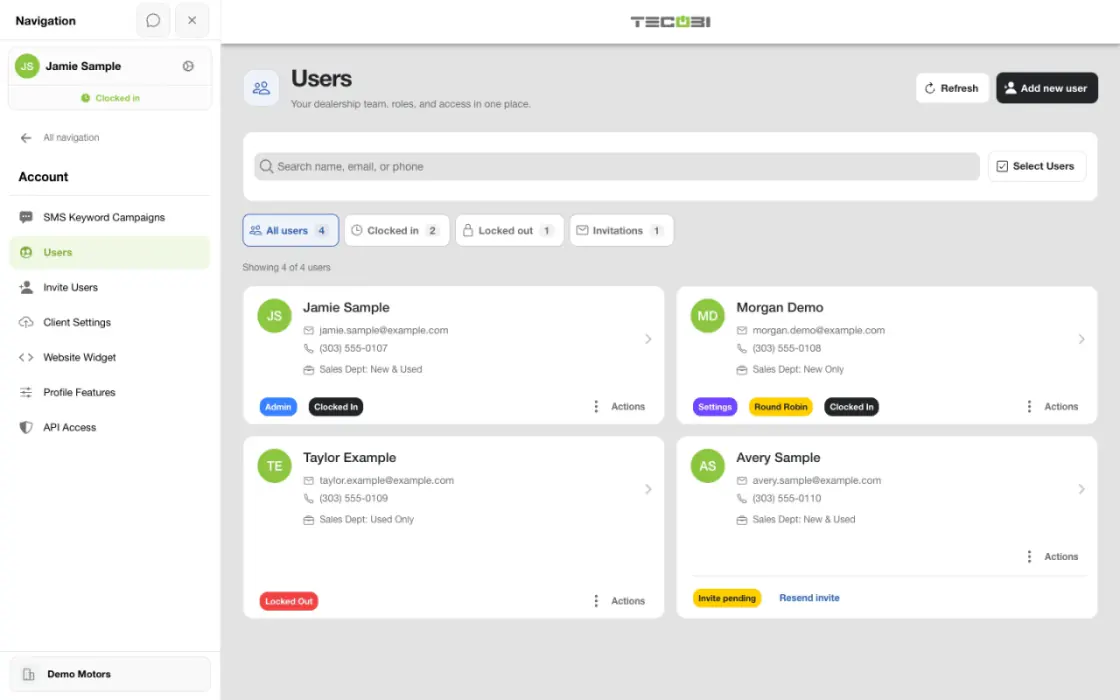
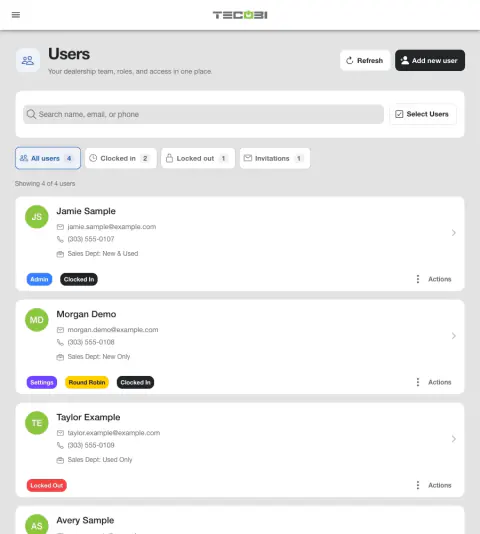
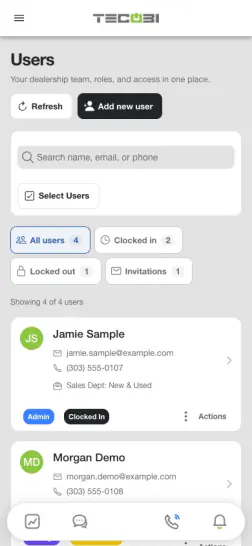
Invite a team member with the right dealership access
A new salesperson should receive access for the store and work they will handle. Review the role before the invitation goes out.
- Choose the dealershipVerify the user is being added to the intended location.
- Confirm the roleCheck the permission set and the staff contact details before sending.
- Review the invitationCheck its status and revoke an unused active invitation when appropriate.
What it helps you do
Invite the right teammate.
Use a valid email address or cell phone number for the person joining the dealership. The invitation interface supports either contact method, or both.
Choose access around the person’s job.
Review the Salesperson or Admin role and the permissions shown for that role. Available round-robin options follow the dealership’s delivery setup.
Keep unused invitations manageable.
Review an invitation’s status and expiration. Administrators can resend an unused invitation or revoke an active one.
How it works
Open Invite Users for the intended dealership.
Confirm the selected account, then open Invite Users. Invitation management requires an authorized dealership administrator or TECOBI administrator.
Enter the team member’s contact information.
Enter the person’s details with a valid email address or cell phone number. Check the destination before sending.
Review the role and permissions.
Choose Salesperson or Admin, then review the visible permissions and notification groups. Use the access appropriate to that person’s responsibilities.
Send and review the invitation.
Send the invitation, then review its displayed status and expiration. If a new invitation is needed, use Resend after checking the destination.
Revoke an unused active invitation when needed.
Revoke stops use of an active invitation. Existing employee access is managed separately through user management.
Setup and availability
Invitation management requires the appropriate administrator role and dealership membership.
Role and permission choices affect account access. Round-robin options depend on dealership configuration.
Treat invitation links and verification codes as private. Ask support for help with an invitation without sharing its secret link or code in this website.
Questions dealers ask
Who can manage staff invitations?
Authorized dealership administrators and TECOBI administrators can manage invitations. Permission to edit account settings alone does not grant invitation management.
Does an invitation require both email and a cell number?
No. A valid email address or cell phone number is required. The interface supports either, or both.
Should every employee be invited as an Admin?
Choose the role and permissions appropriate to the employee’s responsibilities. Review access with the dealership administrator before sending.
What should I do when an invitation has expired?
Find the intended person in Invite Users, review the contact destination and use Resend if a new invitation is needed. Ask the recipient to use the current invitation.
Does Resend simply reactivate the old invitation?
Resend creates a new invitation. Do not assume an older link is still valid.
Why is a completed invitation no longer in the list?
The list focuses on the latest unused invitation for a contact. Review a completed signup through the account’s user management.
Does Revoke remove an existing employee’s account?
No. Revoke applies to an active invitation. Removing or changing existing employee access is a separate user-management action.
ASK ME ABOUT IT
BETTER TOGETHER
Connect the next step.
Explore how these TECOBI solutions fit into your dealership’s workflow.