



Sales Work Queues & Reminders
Make the next follow-up easy to find.
A customer needs an answer. Another asked for a call. A third is waiting for an update you promised tomorrow. TECOBI brings waiting text conversations and customers flagged for a staff call into dedicated queues. Personal reminders help each team member keep their own next steps in view, with a link back to the customer when needed.
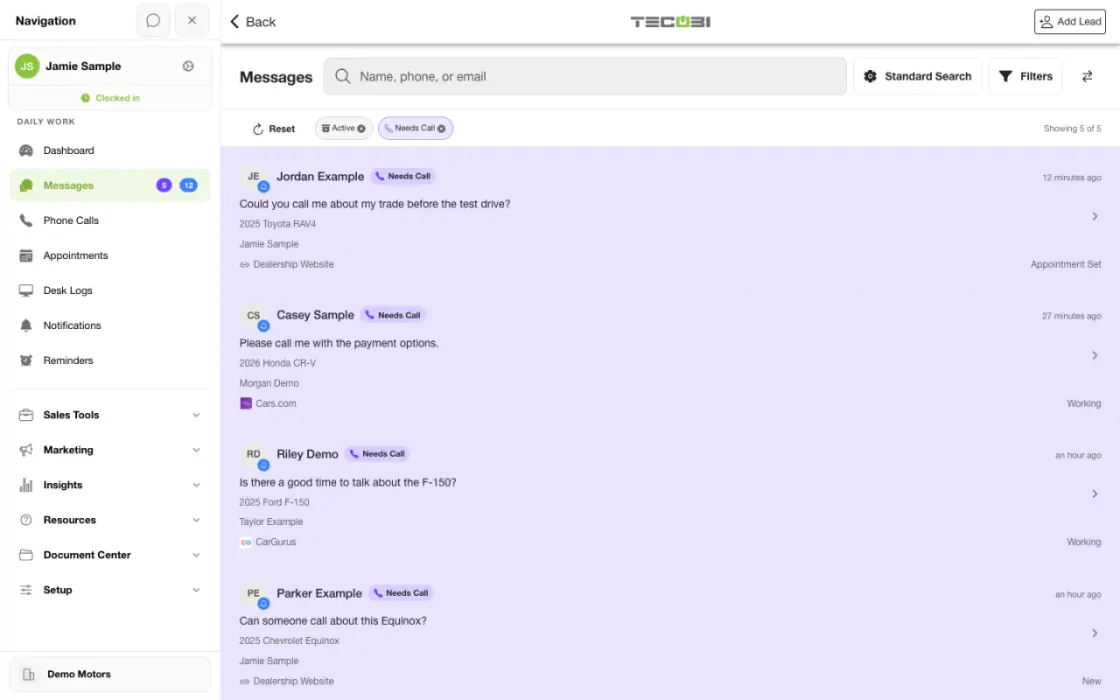
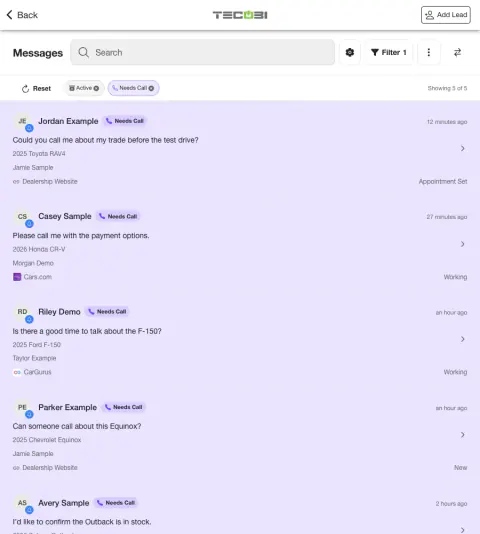
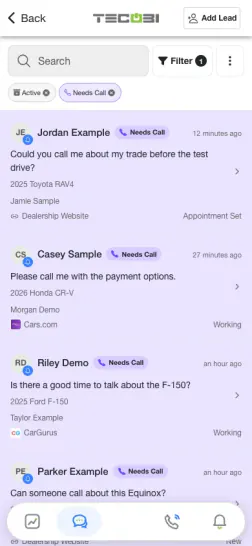
Pick up calls, messages and appointments without losing the context
A teammate starts their shift and sees work already waiting. Use the relevant queue to continue the right customer thread.
- Open the queueFind the category of work you are covering and review the available items.
- Open the customer recordReview who owns the lead, the recent messages and the reason it appears in the queue.
- Take the next actionComplete the follow-up, record the result and review the remaining work.
What it helps you do
Keep waiting conversations visible.
Text queues surface eligible conversations that need attention, so the team can answer the customer’s latest question with the conversation in view.
Give call requests a clear destination.
A needs-call flag helps organize staff phone follow-up when a conversation needs personal attention.
Work within clear ownership.
Queue access and claim behavior follow account membership, assignments and the dealership’s delivery rules.
Keep the follow-up you promised in view.
Set a personal reminder for a callback, a promised update or another next step. Add a note and a time, and start from the customer conversation when you want the reminder linked to that opportunity.
How it works
Open the appropriate queue.
Choose the text or call queue for the dealership and team you are working with.
Review the customer’s context.
Open an eligible opportunity and read the latest conversation, assignments and contact restrictions before acting.
Complete the appropriate follow-up.
Reply by text or use the staff phone workflow as appropriate. Handle the customer’s question and record relevant updates.
Review the remaining work.
Return to the queue to see what still needs attention. Managers can inspect available counts and ownership views for their permitted scope.
Plan your own next action.
Open Reminders and choose New reminder, or choose Reminder from the customer conversation tools. Enter a title, add optional notes, choose the date and time shown in your device or browser time zone, and save. Return to Reminders to review or update your scheduled tasks.
Setup and availability
Queue visibility and claim behavior vary with account access, lead assignments and configuration.
TECOBI-managed staffing services are separate from access to dealership queue screens.
Queue counts can require a refresh; a flag records work to consider rather than proving a completed customer interaction.
Personal reminders belong to the signed-in user and require continued dealership access. They do not assign tasks to other staff, send customer messages or record task completion.
Personal reminders are one-time. Notification timing can vary; Sent does not mean the task is complete.
Questions dealers ask
How is a work queue different from a lead list?
A lead list helps find and filter records. A work queue focuses on a defined condition, such as a waiting inbound text or a needs-call flag, within the user’s access and the account’s workflow rules.
Does a call queue mean an AI places the call?
No. These queues organize follow-up for staff using the dealership’s phone workflow. A needs-call item is a request for human attention, not proof that a call has happened.
Why can two people see different queue items?
Assignments, account access and claim rules affect what each person can see or work. Some TECOBI-managed team queues also use different staffing and eligibility rules from dealership queues.
Does a queued customer automatically become eligible for texting?
No. A needs-call flag or inbound message does not itself remove an opt-out or other contact restriction. Review the customer’s current restrictions in the app.
What if a customer remains in the queue after we handled it?
Review the latest conversation, current flags and any stale-data notice. If the item still appears incorrect after refreshing, ask TECOBI support to inspect the workflow rather than sending another message just to clear it.
Does a personal reminder send the customer a message?
A personal reminder is for the signed-in team member. It can link to a customer conversation, but creating it does not schedule a customer text or book an appointment. Customer appointment reminders and automated follow-up use their own workflows.
How do I create a reminder for a customer?
Open the customer conversation, open its tools and choose Reminder. TECOBI pre-fills the customer link and a follow-up title. Adjust the title, add optional notes, select a future Remind At time and save. For a task without a customer link, use Overview → Reminders → New reminder.
Where can I find my reminders?
Open Reminders to search by title, notes or customer name, and use All, Today, Upcoming, Sent or Canceled. The list contains your own reminders across dealership accounts you still belong to. Today shows scheduled reminders for the current local day; Upcoming shows scheduled reminders from now onward. Your dashboard also has a compact due-and-overdue preview, using the selected dealership’s time zone when available.
Can I change or cancel a personal reminder?
Open a scheduled reminder to change its title, notes or time, or use Cancel reminder when it is no longer needed. A new or changed time must be in the future. Sent and Canceled reminders are read-only. Use Select to cancel scheduled items or delete selected items; Select all loaded applies to the rows already loaded, not every result on the server.
Does Sent mean I completed the task or saw the alert?
No. Sent means TECOBI created the reminder notification for you. It does not confirm that your phone displayed it, that you read it, or that you completed the customer follow-up. If the reminder is linked to a customer, open that conversation and take the next step.
Which time zone do personal reminders use?
The reminder form displays your browser or device time zone. Check that label when choosing Remind At, especially when working with dealerships in another time zone. The quick choices include In 30 minutes, In 1 hour and Tomorrow 9 AM; near-term choices round up to the next five-minute slot. Each reminder has its own date and time.
ASK ME ABOUT IT
BETTER TOGETHER
Connect the next step.
Explore how these TECOBI solutions fit into your dealership’s workflow.