



Lead Imports
Bring your dealership leads into one place.
A useful follow-up process starts with a usable customer record. TECOBI gives authorized dealership users a CSV import workflow for bringing lead lists into the selected dealership and reviewing what was processed.
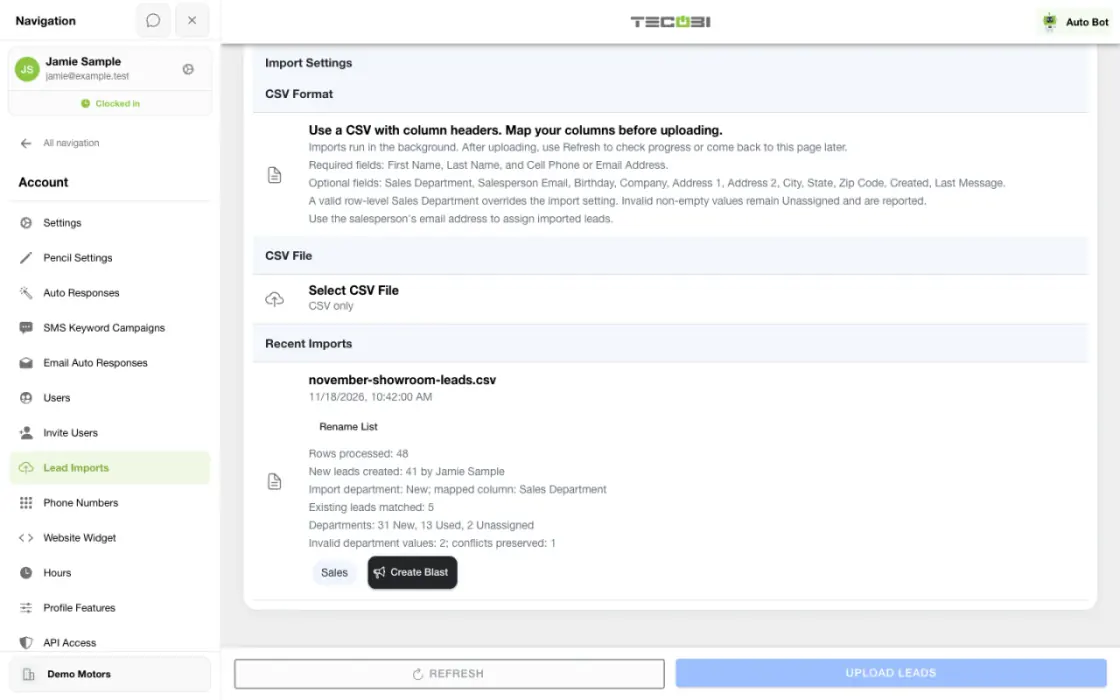
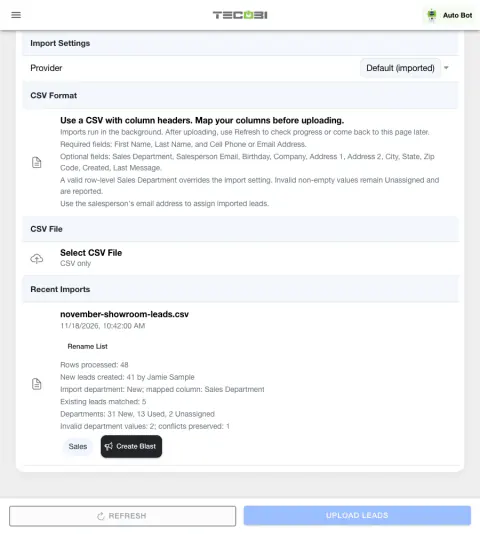
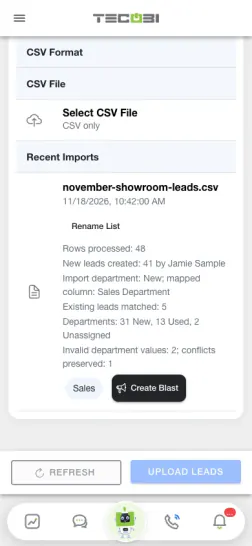
Check how the rows were handled
Review matched and unresolved rows before treating an import as new lead volume.
Prepare and map your lead list
Match the columns in your file to the information TECOBI can use.
- The dealership import screen accepts a CSV with column headers. Map First Name and Last Name, plus at least Cell Phone or Email Address, before uploading.
- The screen suggests mappings for recognized column headers and shows sample rows so the user can review the mapping before submitting the file.
- Optional mapped fields include salesperson email, sales department, birthday, company, address, created date and last-message date.
- A salesperson email can match an active user at the selected dealership. Unmatched values should be reviewed rather than assumed to assign a salesperson.
Choose how the list should be handled
Set up the import around the dealership and the kind of opportunity.
- Before uploading, the user can choose a classification and available sales department, status and provider, and can give the list an optional name.
- A valid sales department in a CSV row overrides the import-level selection for that row. A new lead with an invalid nonempty value is unassigned, and the invalid value is reported.
- The import screen warns users not to include sold leads in this CSV workflow. Contact TECOBI support for the appropriate sold-customer import process.
- Lead import access requires an active user with the appropriate permission and membership in the selected dealership.
Review the recorded outcome
An upload is the start of processing, not proof that every row became a new lead.
- The upload is queued for background processing. Recent Imports displays available row and lead counts; refresh the page to check recorded progress.
- An existing dealership lead can be matched by phone, or by email when a phone is not supplied. An import can also create a new lead when no match is found.
- For a matched lead, a valid mapped salesperson can update its assignment. An existing explicit sales department is preserved when it conflicts with the import, and the conflict is reported.
- Invalid or ineligible rows may not create leads. Review the available counts and the customer records rather than assuming the upload completed every intended change.
Connect the list to your next step
Give your team useful context before deciding how to follow up.
- A named import list can help your dealership identify the group later when the relevant workflow supports selecting that list.
- Review customer details, contact permissions and the intended audience before preparing a Lead Blast or another follow-up.
- A recorded import, a scheduled message, delivery and a customer reply are separate events. Importing a list does not establish texting consent or guarantee a response.
- Available settings, results and list actions depend on dealership configuration, user permissions and the data in the file.
Put the workflow into practice.
Sign in with access to Lead Imports and select the correct dealership.
Choose a CSV file with column headers, then review the suggested column mapping and sample rows.
Choose the applicable classification and available import settings before uploading.
Return to Recent Imports and refresh to review the recorded processing counts.
Connected TECOBI tools
Questions dealers ask
What columns do I need to import leads?
Map First Name, Last Name and at least a Cell Phone or Email Address. Other supported columns are optional; review the suggested mapping and sample rows before uploading.
What happens when a lead is already in TECOBI?
The workflow can match an existing dealership lead by phone, or by email when no phone is supplied. A valid mapped salesperson can update the existing assignment; an existing conflicting sales department is preserved and reported.
Can I upload a list of sold leads?
The import screen warns against including sold leads in this CSV workflow. Contact TECOBI support for the appropriate sold-customer import process.
Does an uploaded list automatically mean every lead was added?
No. The upload is queued for processing, and invalid or ineligible rows may not produce a new lead. Review the available Recent Imports counts and customer records.
Does importing a phone number create texting consent?
No. Review contact permissions and your dealership’s policies before outreach.
Setup and availability
Automotive CRM & Lead Management: setup and availability
Available tools depend on dealership configuration and user permissions.
Integration coverage varies by provider; TECOBI does not automatically synchronize every field with every CRM or DMS.
Pipeline and activity screens describe recorded work; they do not guarantee a sale or prove why it happened.
Survey access depends on dealership membership and user role or assignment. Automatic post-sale survey requests require enabled configuration and an active sending workflow; no universal schedule, delivery or response is promised.
Text Ninjas is an optional service. Confirm the service scope, coverage hours, handoffs and current pricing with TECOBI. No particular staffing ratio, response-time guarantee or managed phone service is promised here.
Dealership Integrations: setup and availability
Availability and data coverage vary by provider, dealership configuration and permissions.
A configured connection does not imply that every operation is enabled or that a particular update has arrived.
Provider access, subscriptions and any associated terms must be established for the intended dealership.
CSV imports and exports cover their supported fields and workflows; they do not recreate an entire previous CRM or every historical conversation.
API data access is read-only and scoped. Available fields, timestamp definitions, pagination and request limits apply.
Background processing, a saved configuration or an email notification does not by itself establish that an import, download or provider handoff completed successfully.
Targeted Text Broadcasting: setup and availability
Campaigns follow account permissions, messaging eligibility, configured volume limits and available customer data.
Scheduling and pacing do not guarantee carrier delivery or customer response.
AI messages and reply automation depend on the selected workflow and settings.
ASK ME ABOUT IT