



Customer pause
Follow up when your customer is ready.
When a customer asks for more time, set a clear next step in the conversation. Pause can hold automated follow-up while your team prepares a message or a call reminder for the agreed time.
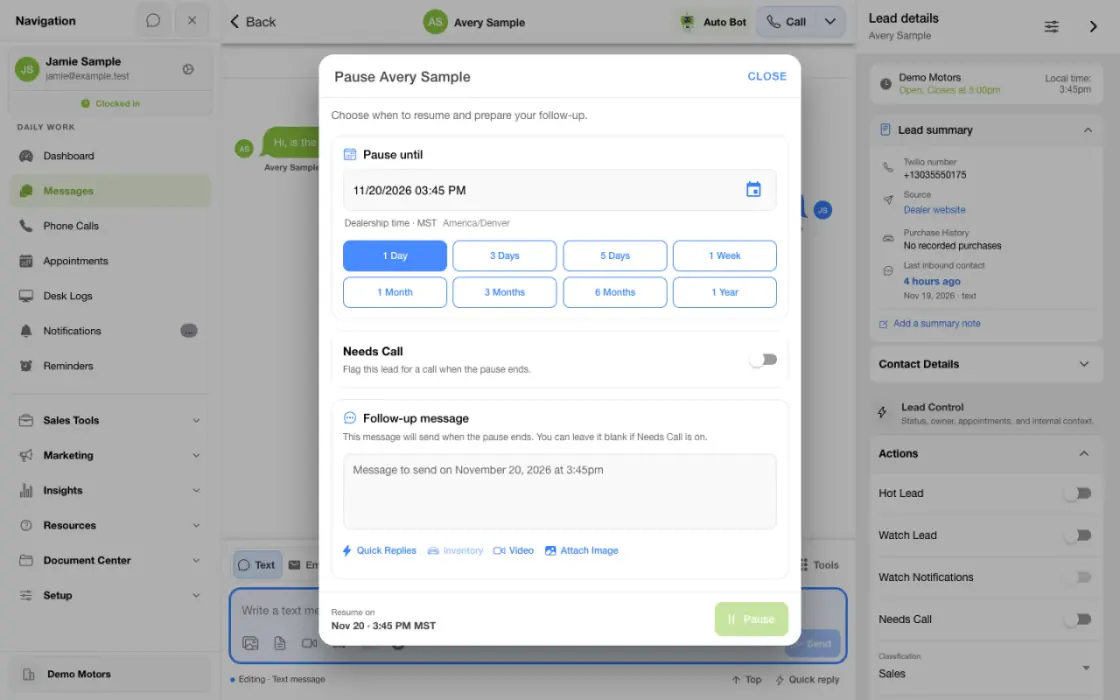
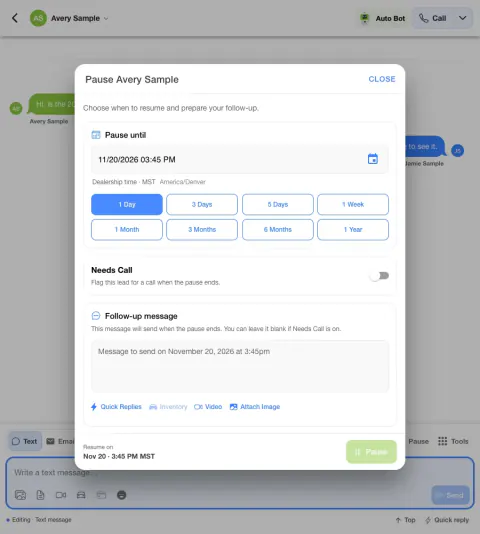
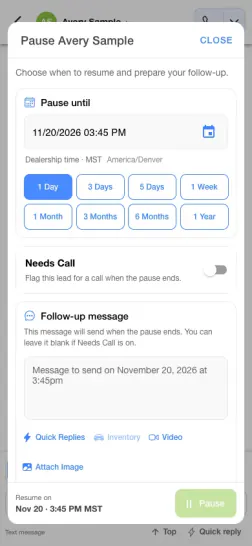
Pause a conversation until the customer is ready
A shopper asks you to check back after a vacation. Set an appropriate resume time in the lead workflow.
- Record their requestKeep the requested date with the conversation.
- Set the pauseReview the resume date and the available follow-up message option.
- Pick up with contextCheck the conversation and current permissions when follow-up resumes.
Plan the next customer touch
Keep the next step connected to the conversation your team is already working.
- Pause is available beside the message composer in an eligible customer conversation. It uses the dealership time zone displayed in the scheduling window.
- The follow-up message is intended for the customer; it is not an internal note. The window also offers supported message tools and attachments.
- A saved pause requires a follow-up message or Needs Call. With Needs Call selected, the text can be left blank for a call-only plan.
- When the pause is processed, Needs Call can flag the lead for a person to call. It does not place a phone call.
Know what happens while the lead is paused
Your team can continue helping the customer while automated work waits.
- A customer pause prevents eligible Auto Bot follow-up from running while that pause is active. It is different from an administrator pausing a bot itself.
- An ordinary incoming customer text can clear the active pause and its pending message before the planned time. Review the new conversation and the customer’s current restrictions; some archived or blocked situations are handled differently.
- Sending a separate manual text does not by itself clear the saved pause. If the agreed plan changes, use Resume to clear the existing pause and pending message, then create a new plan if needed.
Check the next step after the pause
A saved plan, an attempted text and a delivered message are separate events.
- When the pause becomes due, TECOBI processes the saved plan and attempts any prepared message. Processing or delivery can be delayed or fail, so review the conversation and available message status.
- If Needs Call was selected, the lead can be flagged for a person to call when the pause is processed; that flag is not a completed call.
- After the scheduled text, an enabled Auto Bot associated with the current lead status can follow up again when its configured waiting period and other eligibility conditions are met. A second text is not guaranteed or immediate.
- A personal reminder is a separate prompt for a team member to act. It does not send the customer text or create a customer pause.
Put the workflow into practice.
Open the correct customer conversation, review the latest messages and select Pause beside the message composer.
Choose when the pause ends, checking the dealership time zone shown in the window. Preset intervals can help you choose a starting point.
Prepare the customer-facing follow-up text, or select Needs Call for a call-only plan. Review the date, time and message before saving.
Select Pause and check the success message and saved plan in the conversation. Closing the window without saving does not create the plan.
Connected TECOBI tools
Questions dealers ask
Can I pause without writing a text?
The pause window requires either a follow-up message or Needs Call. Choose Needs Call for a call-only plan; it can flag a person to call and does not place the call.
What if the customer texts before the scheduled time?
An ordinary incoming customer text can clear the pause and pending message. Review the new conversation and its restrictions; some archived or blocked situations are handled differently.
How do I change a saved pause?
Use Resume to clear the existing pause and pending message, then create a new pause with the updated plan. A separate manual text does not by itself clear the saved pause.
Will an Auto Bot immediately text after the pause?
No. A later Auto Bot message depends on an enabled bot for the current lead status, its configured wait and the customer’s eligibility. It is not guaranteed.
Setup and availability
Auto Bots® Follow-Up: setup and availability
Auto Bots® handle proactive text follow-up. Inbound Response Bot replies, staff phone calls and this website’s Talk guide are separate workflows.
Your dealership’s audience, timing, hours and sending controls determine which conversations are eligible. Recent activity, customer restrictions and human handoffs can pause or change the next touch.
Authorized users can review and adjust the configuration. Follow-up and reporting help your team work opportunities; they do not guarantee a response or sale.
Event-triggered template automations are separate from AI Auto Bots. Each workflow has its own configuration, timing and eligibility checks; no universal cadence or identical inactivity rule applies to all of them.
Business Texting for Dealership Teams: setup and availability
Texting requires an eligible contact and correctly configured sending number; carrier delivery is not guaranteed.
Opt-out and account controls may restrict sending. Staff should respect customer contact preferences.
Available media types and delivery behavior differ between SMS, MMS, links and email.
Automotive CRM & Lead Management: setup and availability
Available tools depend on dealership configuration and user permissions.
Integration coverage varies by provider; TECOBI does not automatically synchronize every field with every CRM or DMS.
Pipeline and activity screens describe recorded work; they do not guarantee a sale or prove why it happened.
Survey access depends on dealership membership and user role or assignment. Automatic post-sale survey requests require enabled configuration and an active sending workflow; no universal schedule, delivery or response is promised.
Text Ninjas is an optional service. Confirm the service scope, coverage hours, handoffs and current pricing with TECOBI. No particular staffing ratio, response-time guarantee or managed phone service is promised here.
Sales Work Queues & Reminders: setup and availability
Queue visibility and claim behavior vary with account access, lead assignments and configuration.
TECOBI-managed staffing services are separate from access to dealership queue screens.
Queue counts can require a refresh; a flag records work to consider rather than proving a completed customer interaction.
Personal reminders belong to the signed-in user and require continued dealership access. They do not assign tasks to other staff, send customer messages or record task completion.
Personal reminders are one-time. Notification timing can vary; Sent does not mean the task is complete.
ASK ME ABOUT IT