



TECOBI support tickets
Get the right help and keep the conversation together.
When a question needs account-specific help, a TECOBI support ticket gives you a place to explain the issue and continue the conversation with the team.
TECOBI training library
Find training videos and reference guides for your team.
AI & Automation1 item
- Bot Follow-Up: Give Your Helpers Better ContextTraining lesson
Appointments & Scheduling1 item
- Appointments: Book It. Keep It Current.Training lesson
Communication in TECOBI5 items
- Work Your Queues: Keep Customers MovingTraining lesson
- Directions: Help Them Find Your Store.Training lesson
- Calls: Connect, Talk and Follow ThroughTraining lesson
- Email: Write, Review and SendTraining lesson
- Keep Customer Calls & Texts in TECOBITraining lesson
Documents And Resources (No Quiz Required)5 items
- Blasting GuideReference guide
- Bot Status ExplanationReference guide
- Short CodesReference guide
- How Tecobi Fixes CRM FailureReference guide
- TECOBI Sales ProcessReference guide
Getting started in TECOBI6 items
- TECOBI: Your First DayTraining lesson
- Meet Your TECOBI Follow-Up HelpersTraining lesson
- Dashboard: Your Work, Your InsightsTraining lesson
- Lead Details: Your Sidebar, Your WorkflowTraining lesson
- Clocking In & Out: Know Your StatusTraining lesson
- Your Profile: Look Professional. Stay Reachable.Training lesson
Lead Management & Workflow7 items
- Opt-Outs & Archiving: Choose the Right ActionTraining lesson
- Lead Statuses: Put Your Helpers to WorkTraining lesson
- Pause: Follow Up at the Right TimeTraining lesson
- Add a Lead: Start the Conversation RightTraining lesson
- Merge Profiles: Keep the Conversation TogetherTraining lesson
- Desk Log: Track Every Visit. Keep the Team Aligned.Training lesson
- Contact Details: Keep the Right Customer ReachableTraining lesson
Manager Training And Tools10 items
- Automations: Start Strong. Follow Up Clearly.Training lesson
- Blasts: Start the Right ConversationsTraining lesson
- Pencil: Build and Present a DealTraining lesson
- Dealership Settings: Set Your Store Up RightTraining lesson
- The Manager’s Daily TECOBI ChecklistTraining lesson
- Notifications: See It. Take Action.Training lesson
- Monitor: Coach Your Team in Real TimeTraining lesson
- Reports & Profile Analytics: Turn Numbers into ActionTraining lesson
- Training: Assign, Coach and Follow ThroughTraining lesson
- Users: Add Your Team. Keep Access Current.Training lesson
Reset Your Password1 item
- Can’t Sign In? Get Back Into TECOBITraining lesson
Sales Tools & Features5 items
- Inventory: Share the Right VehicleTraining lesson
- Trades: Turn Details Into a VisitTraining lesson
- Credit Applications: Send, Track & TransferTraining lesson
- Surveys: Listen and Follow ThroughTraining lesson
- Short Codes: Reply Faster, Keep It PersonalTraining lesson
Support & Troubleshooting1 item
- Support Tickets: Get Help. Keep It Moving.Training lesson
TECOBI Entrenamiento en Español4 items
- TECOBI: Tu Primer DíaTraining lesson
- Gestiona tus Leads: Responde y Da SeguimientoTraining lesson
- Citas: Programa, Confirma y ActualizaTraining lesson
- Click-to-Call: Conecta y Da SeguimientoTraining lesson
Text Ninjas Explained: What They Do & How to Work with Them1 item
- Text Ninjas: Work as One TeamTraining lesson
Tools & System Features5 items
- Toolbox: Choose the Tool. Keep It Personal.Training lesson
- Conversation Shortcuts: Find Context. Choose Your Words.Training lesson
- Actions: Flag the Lead. Guide the Next Step.Training lesson
- Document Center: Send, Sign and Find ItTraining lesson
- Languages: Keep the Conversation Clear.Training lesson
Give support enough context to find the right issue
A teammate has a problem with a scheduled workflow. An actionable ticket names the dealership, the task and when it happened.
- Choose the relevant topicStart a ticket for the integration, training or workflow you need help with.
- Describe the issue clearlyInclude the relevant timing and steps through the authorized support workflow.
- Check the ticket as it progressesReview updates in the ticket and answer any follow-up questions from support.
Give the team a clear starting point
A short explanation of the problem helps the team understand what you need.
- In the signed-in TECOBI navigation, the support action opens a request form for the selected dealership. Choose the available topic or request type that fits your question.
- The form requires a subject and description and offers an attachment picker. Check the dealership and avoid including unnecessary sensitive customer information.
- A ticket confirmation, a team reply and a resolved issue are separate steps. Check the result before submitting again.
Get help with a customer conversation
Start a support or training request from the conversation where you need help.
- Open the correct dealership and customer conversation, then select Note to write an internal note instead of a customer-facing text.
- Type and select @support for a technical issue or @trainer for a how-to question, and add a brief description of what you need help with.
- Send the note and check the confirmation or error. The request can be linked to the customer conversation; some repeat phone reports can be combined with an existing ticket.
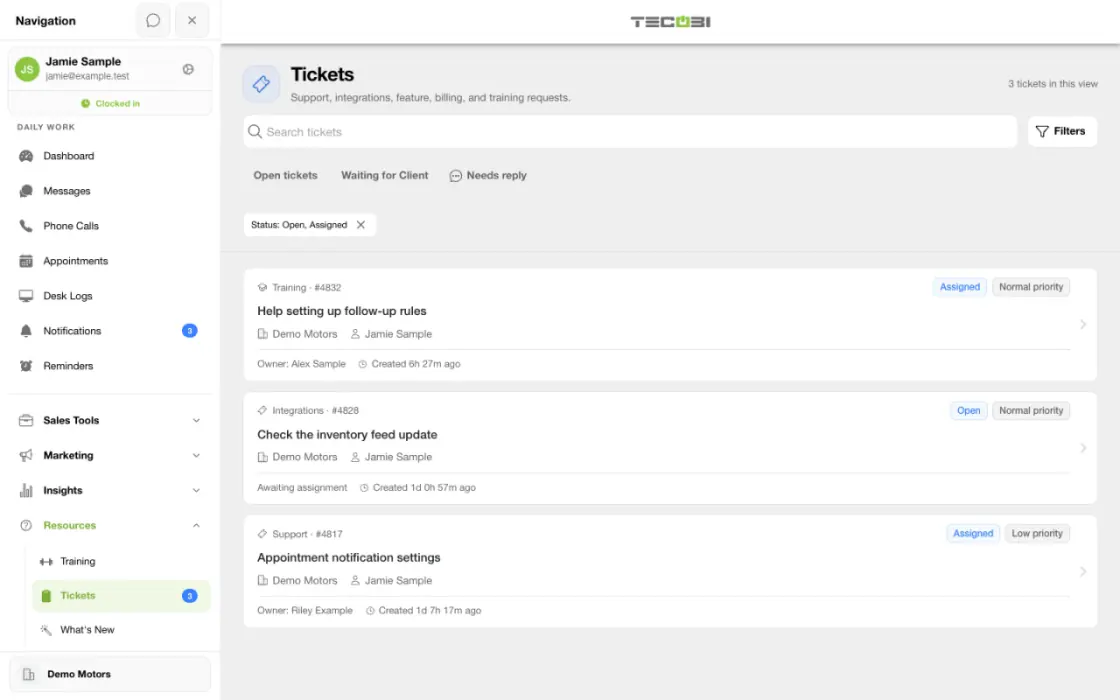
- Open Tickets under Resources to review an available request and continue the conversation with the team.
Follow the conversation in Tickets
Return to the request when you have an update or need to answer a question.
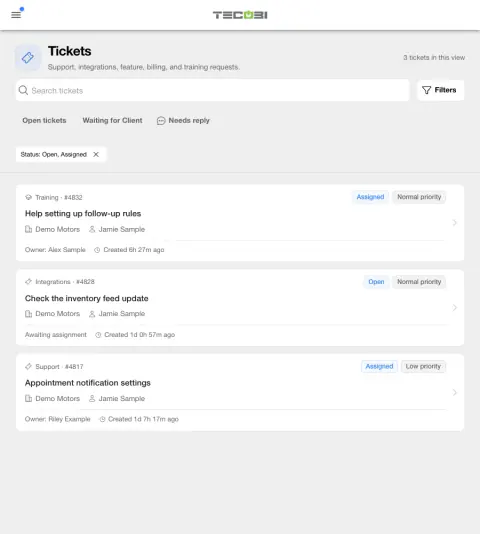
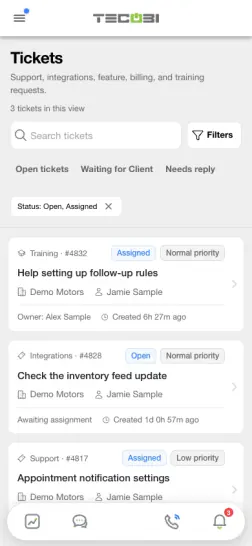
- In Resources, Tickets lists available requests and supports search and filters. Open a ticket to review its subject, status and visible message history.
- The ticket detail provides a message composer and an attachment picker. Send the information the support team requested and review any error before repeating the action.
- Ticket visibility depends on the user’s role, dealership membership and participation. Internal staff notes are not part of a customer user’s visible message history.
Know when to use support
Keep account-specific troubleshooting in the right place.
- Support requests can help with an issue, and training requests can help your team learn a feature. Available topics and controls depend on the account and app version.
- The public website guide can explain product workflows, but it cannot open an existing private ticket or confirm a ticket was submitted.
Put the workflow into practice.
Sign in to TECOBI, select the correct dealership and open the navigation menu.
Choose Create support ticket, then select the available topic or request type that best describes what you need.
Enter a subject and description. Add an appropriate attachment if it helps explain the request, then submit and check for the confirmation or an error.
Open Tickets under Resources to find an available request, review its messages and send a reply when the team needs more information.
Connected TECOBI tools
Questions dealers ask
Where can I find a TECOBI support ticket?
In the signed-in app, open Tickets under Resources and search or filter the requests available to your user. Open a ticket to review its details and visible conversation.
Can I send another message or attachment?
An accessible ticket has a message composer and attachment picker. Enter the information or select a supported attachment, send it and check for any error.
Can everyone see every dealership ticket?
No. Visibility depends on dealership membership, user role and ticket participation. Staff-only internal notes are not shown to customer users.
Does asking this website create a ticket?
The website guide does not itself confirm that a TECOBI in-app ticket was created. Use the signed-in support-ticket workflow for an account-specific request.
How do I tag support or a trainer on a customer conversation?
In the correct customer conversation, select Note, choose @support or @trainer, and describe the issue. Send the internal note and check the confirmation or error; an available linked request can be reviewed under Resources → Tickets.
Setup and availability
TECOBI Training & Product Help: setup and availability
Lesson and video availability varies, and assigned staff training may require sign-in and a quiz.
Public guidance does not access private customer records, change account settings or mark training complete.
Account-specific troubleshooting and private attachments belong in TECOBI’s support workflow.
ASK ME ABOUT IT