



Email Communication
Give the customer another way to keep moving.
Some information is easier for a customer to review by email. TECOBI keeps staff email close to the lead conversation and supports preset first responses and configured new-lead follow-up. Give shoppers useful details they can revisit, then use the customer’s replies and recorded activity to guide the next step.
Use email when the next step needs more detail
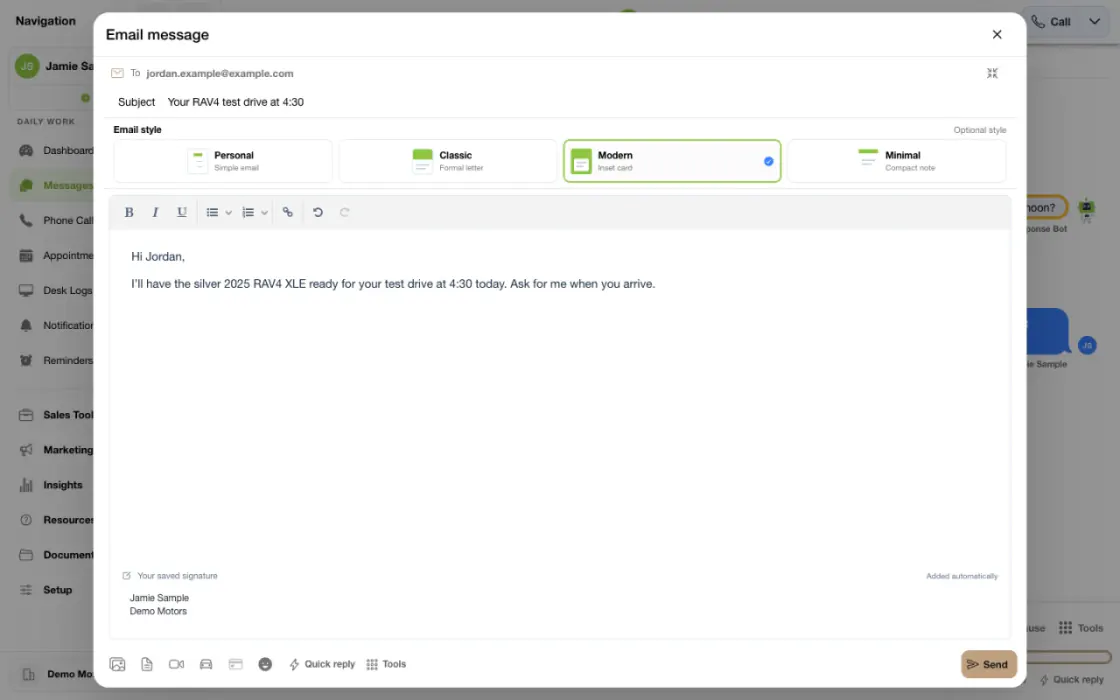
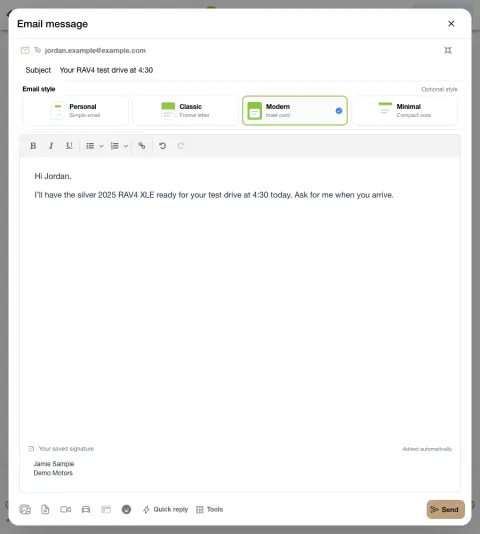
A shopper wants the vehicle information and directions in one place. Prepare the email from the open opportunity so the rest of the team can follow the conversation.
- Open the composer in contextChoose the right customer and review the prior messages.
- Prepare a clear answerAdd the specific details the shopper needs and review the address, subject and message.
- Use the recorded activityCheck that the email is visible in the conversation before deciding what to do next.
What it helps you do
Keep the message connected.
Compose email from the customer conversation instead of separating the follow-up from the lead’s history and next steps.
See when delivery needs attention.
Available message activity and email delivery reports help authorized users review recorded statuses and identify failures or unknown outcomes.
Have a useful next email ready.
Prepare first-response templates for the inquiries your dealership receives and configure follow-up messages for eligible new leads. Your team can keep the wording consistent while leaving room for the salesperson to take over the conversation.
How it works
Open the customer’s email composer.
Open the correct lead conversation and choose the available email option. Confirm the customer’s email address before composing the message.
Prepare the information they need.
Write the email, review the subject and signature where available, and add supported material or links. Keep the message focused on the customer’s current question.
Send and review the recorded activity.
Send through the account’s configured email workflow. Review the available result or error rather than treating a submission as confirmation that the customer saw it.
Continue the opportunity.
Review available email activity with the customer’s other messages and next steps. Use the appropriate support path if delivery or account configuration needs attention.
Review the first email by source.
With the appropriate settings access, confirm the dealership and open Setup → Account → Email Auto Responses. Review the default or source-specific response, its provider assignments and available inquiry variants. Review changes before saving them to the live configuration.
Set the next email and its timing.
With access to the dealership’s Automation settings, open New Lead Email Followup. Open an existing rule or use the green plus, review the message and Lead Age Minutes, and save the intended change. This is a new-lead schedule, not a recurring personal reminder or a promise of delivery at an exact minute.
Setup and availability
Email capabilities and delivery behavior depend on the dealership’s configured account and provider workflow.
Not every message has a delivery or open event, and those events do not establish that the customer personally read it.
Additional email settings, conversation-chain features and provider integrations may have separate availability requirements.
Questions dealers ask
Can staff send an email from a customer conversation?
Yes. The conversation includes an email composer using the customer’s email address and the available account settings. Supported email activity remains associated with the lead.
Can an email include media or shared material?
The composer supports eligible media and links. Available file types and how content is presented depend on the upload and email workflow; review the message and any validation error before sending.
What do the email delivery reports tell us?
They summarize recorded outbound email statuses, such as delivered, opened, failed or unknown, when that information is available. These are delivery and tracking signals; an open event does not prove that the named customer read or understood the message.
Will all of our personal inboxes automatically appear in TECOBI?
Do not assume that every mailbox, message or provider is synchronized. Email behavior follows the dealership’s configured setup. Discuss your specific mailbox and workflow requirements with TECOBI before relying on them.
What should I do when an email fails?
Review the recorded status or error, the recipient address and the account’s available email settings. Ask your administrator or TECOBI support for help with recurring problems. Avoid repeated sends while the outcome is uncertain and respect the customer’s contact preferences.
Can our first email change with the lead source?
Yes. Email Auto Responses has its own default and provider-specific templates, separate from the text-response library. A matching provider-specific response is used before the configured default. Available inquiry variants include trade, inventory, showroom, service and employment. These are preset messages, not a claim that an AI email assistant answers every reply.
Will every new customer receive the whole email follow-up sequence?
No. New-lead email follow-up depends on the dealership’s email and automation settings, a usable customer email address, timing and lead eligibility. Conversation activity, staff contact, appointments, pauses, archiving and other status rules can change whether a follow-up is eligible. Review the actual lead history rather than assuming every saved step was sent.
Can first-response emails wait until the dealership opens?
The dealership can configure initial email auto responses to wait until opening. Later new-lead email follow-up also has its own timing and open-hours eligibility. Lead Age Minutes describes the rule’s lead-age threshold; it is not a guaranteed inbox-delivery time.
ASK ME ABOUT IT
BETTER TOGETHER
Connect the next step.
Explore how these TECOBI solutions fit into your dealership’s workflow.