



Google Reviews for Dealerships
Keep the customer relationship going after the sale.
A customer’s experience continues after delivery. TECOBI’s Google Reviews tools bring review activity, reply preparation and request reporting into the dealership workflow. With the required account setup and Google connection, your team can see reviews, prepare an AI-assisted draft and decide how to respond.
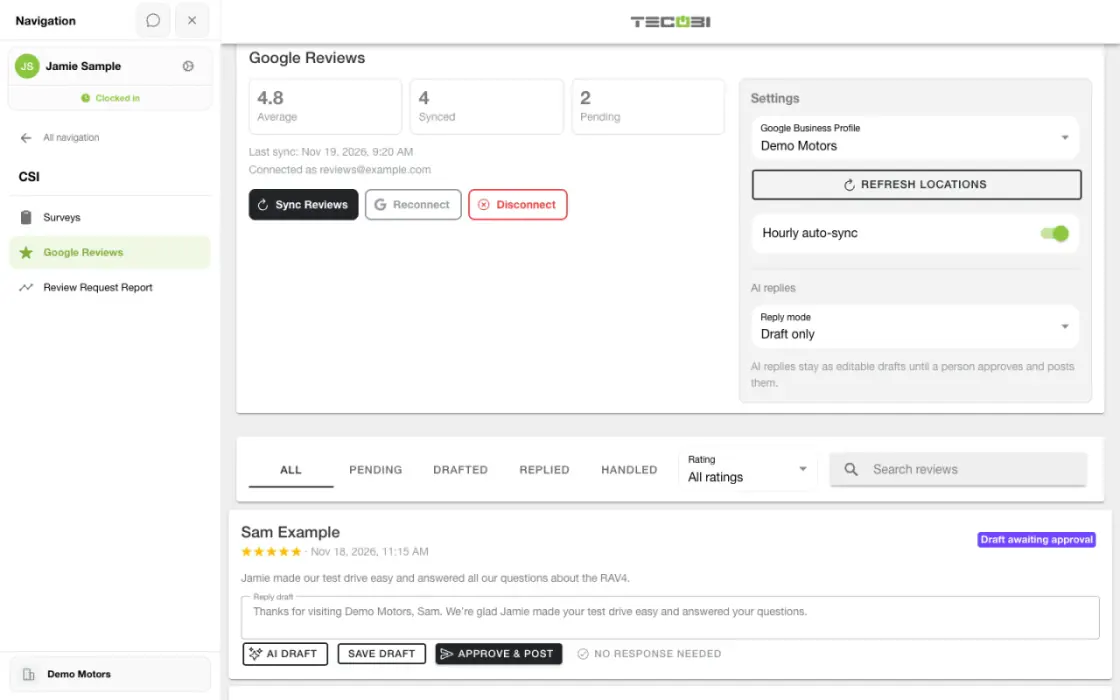
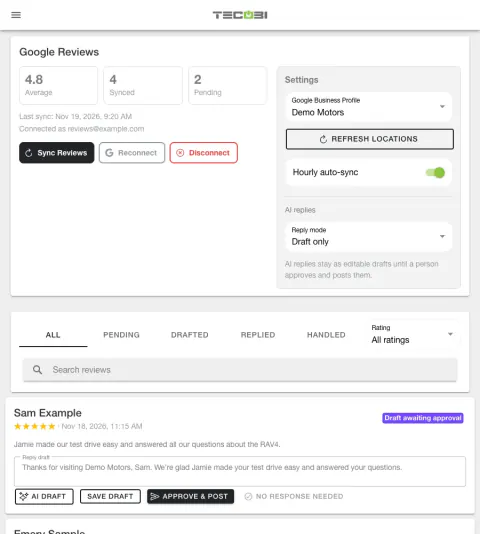
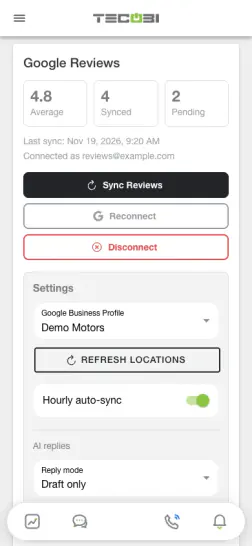
Work a new review from the right dealership profile
A review is worth checking in context before someone drafts a public response.
- Confirm the locationVerify the profile and the review before you reply.
- Read the customer’s feedbackReview the rating and message together, then draft a response that addresses the feedback.
- Check the outcomeUse the review workspace to follow the response state and keep account-specific details private.
What it helps you do
Give each review a considered response.
When AI reply drafting is enabled, start with a draft, edit it and post the response your team approves. Keep the dealership’s voice and the details of the review in the conversation.
See the steps between asking and receiving a review.
The request report separates sent requests, recorded delivery states, link clicks and attributed reviews. Use those signals to understand the process without treating a clicked link as a completed review.
Keep people involved in matching reviews.
Review the match queue, confirm a match or correct it when needed. Reports distinguish automatic attribution from staff attribution, helping your team interpret the numbers with the right context.
How it works
Connect the right dealership location.
An authorized user sets up the dealership’s Google Business Profile connection and selects the relevant location for review syncing and replies. A configured review link is a separate capability from a connected account that can sync and reply.
Review the customer’s feedback and prepare a response.
Use the review workspace to find the relevant feedback. Where AI drafting is enabled, generate a draft, make any needed edits and approve the reply before posting it through the connected workflow.
Review the request flow and attribution.
Use the request report to inspect delivery states, clicked requests and attributed reviews for the selected period. Check uncertain matches in the match queue instead of assuming every new review came from a request.
Setup and availability
Availability depends on dealership enablement, authorized roles, configured Google Business Profile access and a selected location. A manual review destination alone does not enable review syncing or posting.
AI drafts require review and can be unavailable if the connected AI service is unavailable. A prepared draft or posting attempt does not establish that a response is live on Google.
Request delivery, clicks and review attribution are different measures. Matching can require staff review and does not prove causation or identify every reviewer.
No particular rating, number of reviews, response, sale or search ranking is guaranteed.
FROM REQUEST TO RESPONSE
Make every review easier to act on.
Bring the request, the customer’s feedback and your team’s response into a clearer dealership workflow.
Connect the right Google location.
An authorized team member connects Google Business Profile and selects the dealership location for review syncing. A review destination link can help a customer find your page, while a connected location is needed for the supported sync and reply workflow.
Find the feedback that needs attention.
In Google Reviews, search reviews or filter by rating and response status, including pending, drafted, replied and handled. Open the available review details to understand what the customer shared and what response, if any, is already present.
Prepare a reply your team can stand behind.
When AI drafting is enabled, a team member can generate an editable draft, make changes and save it. In the manual workflow, they approve and post the reply through the connected Google location, or mark that no response is needed. Check the recorded posting status rather than assuming a draft is public.
Follow the request through the report.
The Google Review Request Report separates Overview, Requests and Match Queue. Compare recorded sent, delivered, failed and unknown delivery states with unique clicks and attributed reviews. In Requests, available filters include source, origin, delivery, click, match status and campaign.
Review uncertain matches.
In the Match Queue, authorized staff can confirm or reject a proposed match, or search for a customer when a different match is appropriate. Automatic and staff attribution are shown separately, so your team can investigate the evidence instead of treating a click as a completed review.
Available controls depend on your dealership’s configuration, Google connection and user permissions. A review request, a link click, a matched review and a posted reply are distinct events; none guarantees a particular rating or outcome.
Questions dealers ask
Can AI help us write replies to Google reviews?
Yes. With Google Reviews and AI reply drafting enabled for the dealership, TECOBI can generate a reply draft. Authorized staff can edit the text and post their approved response. AI drafting is an assistance tool; your team should review the wording and keep private customer information out of public replies.
Is setting a review link enough to sync and reply to Google reviews?
No. A configured review destination can direct a customer to the dealership’s review page. Syncing reviews and posting responses also require an active Google Business Profile connection and the appropriate selected location and permissions.
What does the Google Review Request Report show?
It includes direct requests sent, recorded delivery or failure states, requests with a click, attributed reviews and a match queue. Automatic and staff attribution are reported separately. The selected period and available tracked activity determine the report.
Does a click prove the customer left a review?
No. A request with a recorded click is different from an attributed review. Attribution uses the available matching evidence, and staff can review or correct matches. Some reviews remain unmatched; the report does not prove that every click became a review or that every review was caused by a request.
Who can manage dealership Google reviews?
The Google Reviews tools require an authorized account role and access to the dealership. Enablement, the Google connection and selected location also matter. An ordinary salesperson should not assume they have the same management controls as a dealership administrator.
Does TECOBI guarantee a higher Google rating or search ranking?
No. TECOBI helps the dealership manage the request and response workflow. Customers decide whether to leave a review and what to say, and Google controls publication and search presentation.
Is this the same as reading customer reviews about TECOBI?
These are tools for managing your dealership’s Google review workflow. Customer stories and reviews about TECOBI are separate evidence you can ask this website’s guide to show you.
ASK ME ABOUT IT
BETTER TOGETHER
Connect the next step.
Explore how these TECOBI solutions fit into your dealership’s workflow.