



Auto Bot lead statuses
Match follow-up to the customer’s situation.
A customer who is ready to talk today needs a different conversation from someone who needs more time. Your dealership can connect Auto Bots to lead statuses so eligible follow-up reflects where the customer is in the buying journey.
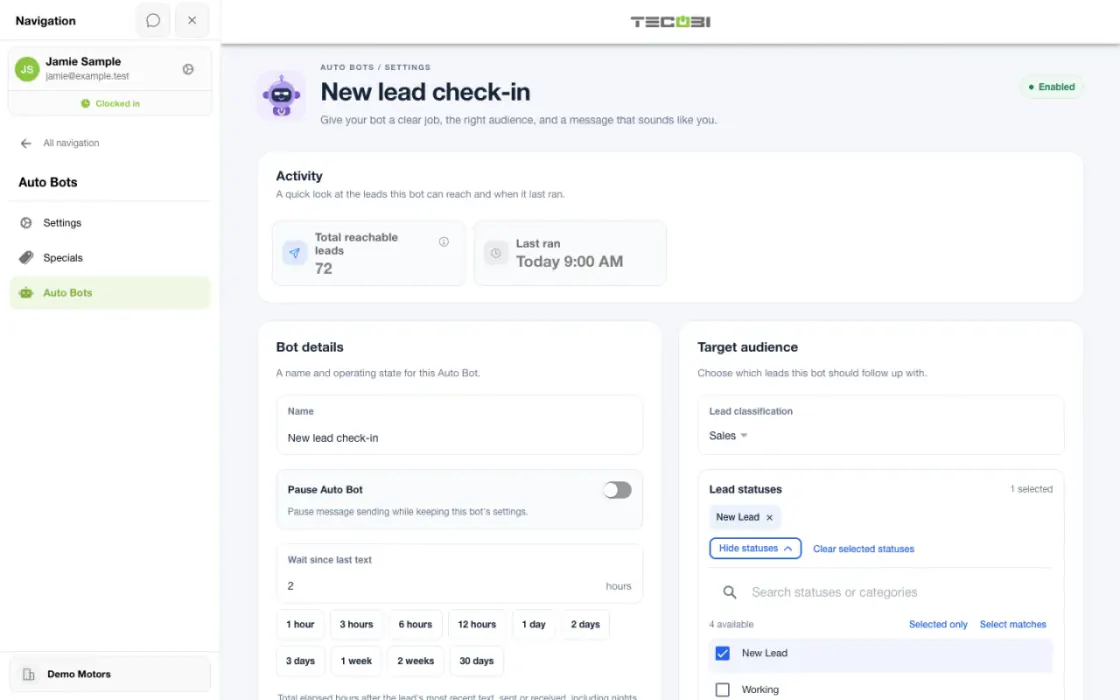
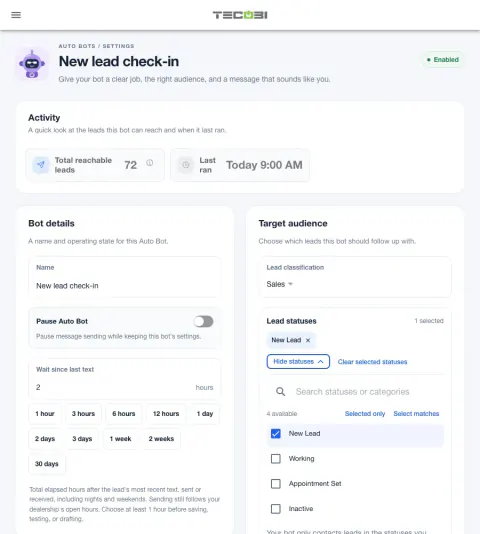
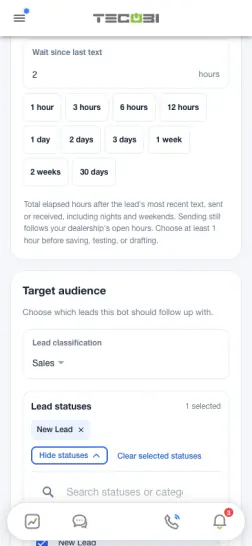
Check which leads qualify for a rule
A rule for leads still working through options can have a different audience from a rule for booked shoppers.
- Choose the intended situationStart with the outcome the rule should support.
- Review status eligibilitySelect the statuses this rule should reach and verify the wait time.
- Confirm with an exampleCheck a matching and a non-matching status before enabling the rule.
Connect the right follow-up to the right situation
Lead status helps your team organize the customer’s progress and can be part of an Auto Bot audience.
- An Auto Bot can be configured for one or more lead statuses. A customer’s current status is one of the checks used to find eligible follow-up.
- A status can show more than one associated Auto Bot. The status and bot names depend on your dealership’s configuration; an attached bot can also be marked paused.
- Classification, lead source, message activity, contact restrictions, customer pauses and other settings can also affect eligibility. A status with an attached bot does not by itself guarantee a text.
- Use the status that truthfully describes the customer’s situation. A request to stop contact must be handled through your dealership’s opt-out process.
Find and update the lead status
Give your team an accurate view of the customer before the next follow-up.
- In Lead details, open Actions and select Status if your role has access. The picker can search status names and associated Auto Bot names.
- The picker initially shows statuses with attached Auto Bots. Turn off Auto Bot statuses only to see all available statuses, including those without a bot.
- The Auto Bot attached badge identifies an association, not a promise that the bot is active or that this customer will receive a message. A paused bot is labeled in the picker.
- Selecting an eligible status starts an update. Confirm the saved status; some appointment or sold statuses require permissions or additional steps.
Understand the timing and the handoff
Your team still owns the relationship and the next decision.
- An Auto Bot’s configured waiting period considers message activity. Changing a lead status does not itself start a fresh countdown or guarantee an immediate text.
- When a customer replies, read and respond to the conversation. Some workflows can update status automatically, but do not assume every reply moves a lead to the status you want.
- If no enabled bot is associated with the correct status, make a follow-up plan with your team. A customer pause or a personal reminder can support different next steps.
- Use the appropriate appointment and sold workflows to record those outcomes. A lead-status change alone is not a completed visit or sale.
Put the workflow into practice.
Open the correct customer conversation and review the latest messages before choosing a status.
Open Lead details, find Actions and select the current Status when your permissions allow it.
Search the available statuses and review the attached Auto Bot names. Turn off Auto Bot statuses only to see all available statuses.
Choose the status that accurately reflects the customer’s situation, complete any required workflow and confirm the saved status.
Connected TECOBI tools
Questions dealers ask
Does every lead status have an Auto Bot?
No. The status picker can show all available statuses, including those with no attached bot. Ask your dealership administrator about your store’s configuration.
Does an attached bot mean a text will be sent?
No. A bot can be paused, and status is only one eligibility check. Message activity, classification, sources, pauses and communication restrictions can affect follow-up.
Does changing the status immediately send a text?
Changing status does not itself guarantee an immediate message or start a new waiting period. The configured bot, recent message activity and eligibility rules matter.
Does every customer reply change the lead status?
No. Some workflows can update status, but a reply does not guarantee the status your team expects. Review the conversation and confirm the correct status.
Setup and availability
Auto Bots® Follow-Up: setup and availability
Auto Bots® handle proactive text follow-up. Inbound Response Bot replies, staff phone calls and this website’s Talk guide are separate workflows.
Your dealership’s audience, timing, hours and sending controls determine which conversations are eligible. Recent activity, customer restrictions and human handoffs can pause or change the next touch.
Authorized users can review and adjust the configuration. Follow-up and reporting help your team work opportunities; they do not guarantee a response or sale.
Event-triggered template automations are separate from AI Auto Bots. Each workflow has its own configuration, timing and eligibility checks; no universal cadence or identical inactivity rule applies to all of them.
AI Texting & Response Bot: setup and availability
Reply modes, delays, permissions and customer context determine when Response Bot runs. Connected inventory and appointment workflows depend on the dealership’s configuration.
Negotiation, finance decisions and questions requiring dealership judgment need a person. An AI answer is not a binding out-the-door quote or finance approval.
Dealership AI calling is not available yet. The website’s Talk guide explains TECOBI; it does not access private accounts or perform customer actions.
The example shows the shared conversation workspace with demonstration identities. It does not identify a particular message as AI-written.
Automotive CRM & Lead Management: setup and availability
Available tools depend on dealership configuration and user permissions.
Integration coverage varies by provider; TECOBI does not automatically synchronize every field with every CRM or DMS.
Pipeline and activity screens describe recorded work; they do not guarantee a sale or prove why it happened.
Survey access depends on dealership membership and user role or assignment. Automatic post-sale survey requests require enabled configuration and an active sending workflow; no universal schedule, delivery or response is promised.
Text Ninjas is an optional service. Confirm the service scope, coverage hours, handoffs and current pricing with TECOBI. No particular staffing ratio, response-time guarantee or managed phone service is promised here.
Sales Work Queues & Reminders: setup and availability
Queue visibility and claim behavior vary with account access, lead assignments and configuration.
TECOBI-managed staffing services are separate from access to dealership queue screens.
Queue counts can require a refresh; a flag records work to consider rather than proving a completed customer interaction.
Personal reminders belong to the signed-in user and require continued dealership access. They do not assign tasks to other staff, send customer messages or record task completion.
Personal reminders are one-time. Notification timing can vary; Sent does not mean the task is complete.
ASK ME ABOUT IT